1. Importing data
Another file format you may wish to use as opposed to .csv files is the .vtk or .vtu format. This is the preferred file format for paraview and operates in much the same way. However there are subtle differences that you may wish to know about. This tutorial will demonstrate how to import the data, perform contours, cutplanes and remap the data to the model geometry.

So far, we have imported STL files:
- Steps 1 and 2 shown in white.
- Historical development shown in grey.
- Mine topology shown in dark grey.
For information regarding inserting STL files into paraview, see section 2 for instructions relating to dragging and dropping the geometry files into the pipeline browser.

The .vtu file can be added to ParaView in much the same way. Begin by dragging and dropping the file into the pipeline browser.
In the properties section there will be an option as to what part of the .vtu file to import.
The vtu has two main data types.
Cell Data is designated by the icon on the left the data name. Cell data contains information bounded by the geometry of the cell and can vary across the cell.
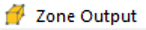
In contrast there is also point data, which contains a location of the point and the value at that point.
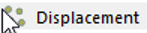
For the purpose of this example, we will import the point data, displacement and velocity and the cell data, called “zone output”
Recall that nothing will happen until the apply button is pushed.

Initially the file will be imported as a solid layer and you will not be able to see through it. Instead try changing the view to wireframe.

2. Remapping data to a surface:
In this exercise we will use a filter from section 5.1. The filter we will use is called “resample with dataset”.
With the .vtu file highlighted in the pipeline browser, right click, then navigate to filters, followed by alphabetical and locate, resample with dataset. Click apply.

This part is important. Be sure to set the .vtu file as the source array, or where the data you wish to map is located. You will also need to set the radio button the left hand side to destination and select the destination at this time. Do not click OK until you have set both the source and the destination mesh. The destination mesh, in this example is going to be the Topo stl, which shows the mine topology.

At first nothing will appear to happen because we have yet to set up the colour mapping. You will also need to make the following changes.

Set the colour mapped to the point data from “zone output”.
Next, set the next filter on the right hand side of this menu to volumetric_strain %.
The surface filter is fine to stay as is.
If you are having trouble finding this menu, it is detailed in section 3.1.
Next you will need to change the colour mapping by selection the button as shown. Again, refer to section 3.1 but the colour map must have it lower bound set to 0 and the upperbound set to 0.001.

The result is as shown below.

We can add the same map to the existing historical mining by repeating the steps.
3. Contouring
Contouring is a little trickier but can be accomplished by using the following steps.
If we want to contour using the volumetric strain, we will have an issue. To apply the contour we need point data, and volumetric strain is in this model is stored as cell data. We will need to correct for this and then store the result as an array before we will be able to use the contour.
Begin by applying the filter, cell data to point data as shown.

In properties window, be sure to check the box that says “pass cell data” and then hit the apply button. With the cell data to point data filter highlighted, you can select the calculator button to open the calculator.

You will then need to open the scalars menu and select volumetric strain from the list of scalars. You can call the result array anything you wish, but we have referred to it as Volumetric_Strain.

With the calculator layer that you just created, highlighted, you can then use the contourbutton to start defining a contour layer.

For full details on using the contour feature, see section 4.2, but in this example, we set the contour threshold to 0.0004, changed the colouring to solid colour and highlighted it in red. See the output below for a demonstration.

4. Cut Planes
Cut planes have been covered in section 4.1, however, to briefly recap.
Begin by highlighting the .vtu file in the pipeline browser.

The contour button can be found directly above the pipeline browser. Selecting this button and hitting apply will generate a new cut plane. The new cutplane will need to be adjusted to reflect displacement instead of being set to solid colour. Alter this to reflect the image as shown.

Using the colour map editor as detailed in section 3.1. Using this tool we have set the opacity of the cut plane to 0.6, and set the colour map to a descretized version of the colour map erdc_light. We have also added another cutplane with the same settings 90° from the first cutplane.
The result is as shown below.

5. Stream Tracer
We can also use this opportunity to create a stream trace to show the overall direction of the displacement. To apply this, select the steam trace button above the object browser.
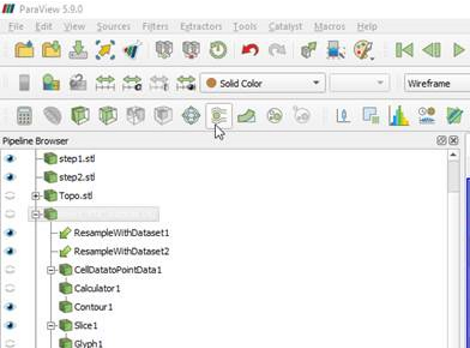
When the dialogue opens, change the stream type to point cloud. You can use the “P” key on your keyboard to place the centre of the point cloud somewhere more convenient, for example the shaft defined as step1.

Change the number of points to 400. You will see that now we can view a 3D representation as the streams follow the displacement vector.