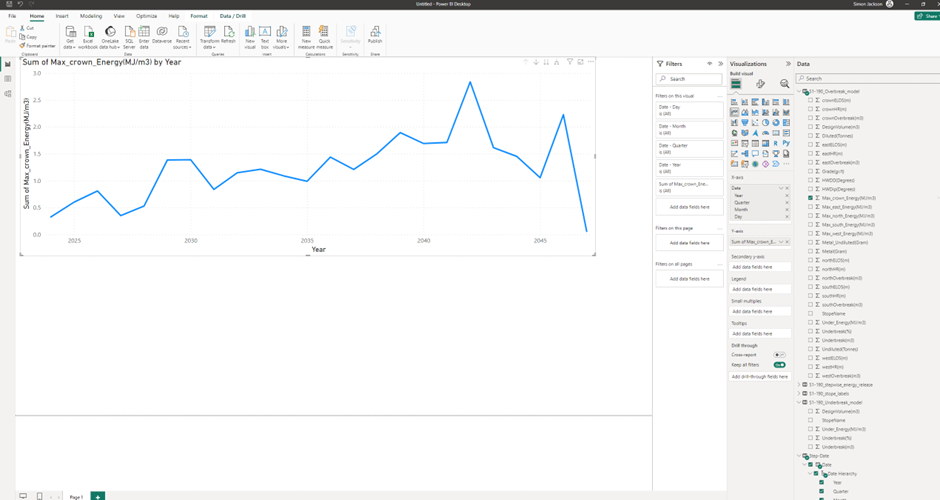
So you’ve run RocboX and you’re ready to start making some graphs, and visuals to analyse model results. PowerBI is a great way to dig into, and present the data, but it can be a bit daunting to set up. This guide will take you through the process, and will explain some of the basics behind powerBI that will hopefully help you to build and add custom data to your dashboards.
PowerBI – how it works.
PowerBI is a tool to bring together data from multiple sources, to carryout numerical analysis or visulise data graphically. The software is generally targeted as businesses (BI stands for Business Insights) but it works really well for numerical modelling data sets. There are some similarities with Microsoft Excel in terms of graph creation and table editing – however the approach is different.
PowerBI creates a relational database, so that multiple data tables can be imported, and linked together with a reference column, for us, with RocboX this is usually the stope name column, taking a simple example. I can import two simple tables (stope firing date, and stope Dilution) for example.
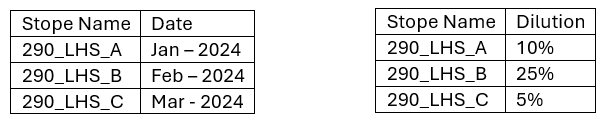
In excel, to plot dilution against date, I would have to use a vlookup formula to create a single table, then create the plot. (a process that could quite complicated with lots of fields, and hundreds of datapoints)
In PowerBI, I simply have to provide the relationship between tables. In this case, I can say the tables can be compared using their Stope Names. Now no matter how many columns are in each table, I can plot any field from either table against each other.
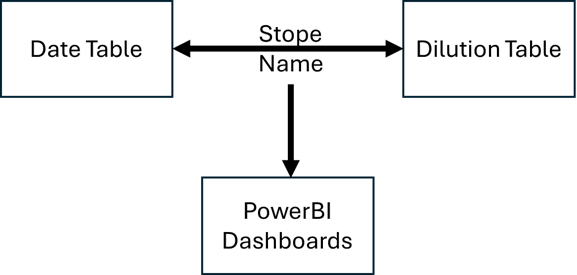
This approach makes it much easier to update single data sources, and refresh visuals, instead of going through to ensure formulas are correct, and file references are still accurate. It also provides more flexibility for adding new columns etc without cell references being lost. The size of database that can be used is also much larger than excel can handle.
PowerBI and Rocbox – Importing Data
It is important to try and leave import data as it comes from rocbox, and carryout any post processing within PowerBI, this will make it much easier to update with new results, or to use an existing dashboard for a new project.
PowerBI allows you to use a series of ‘transformation’ steps that can be applied to data to get it ready for use. It is again important to try and keep these as limited as possible to maintain compatibility with new datasets.
From Rocbox, you should have a series of text files before you get started in PowerBI:
- Rocbox Overbreak
- RocboX Underbreak
- Stepwise Energy Release
- Stope Labels
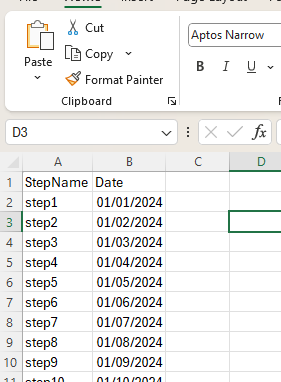
Additionally, you should create a text, or excel file that contains the dates that each step represents using a full date format ideally. eg:
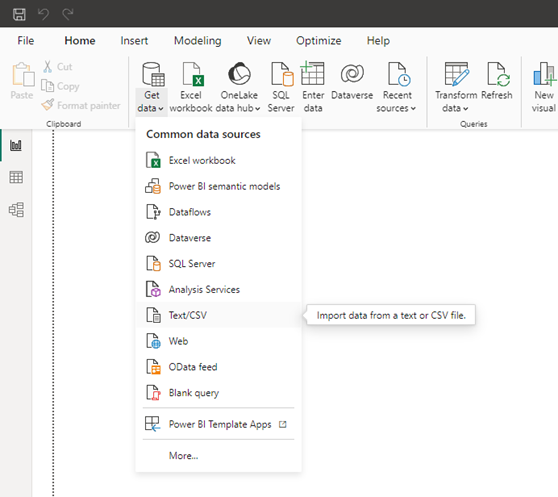
Next open PowerBI and create a new project, and we can import all of the files via Get data > Text/CSV
An example of the data will be shown, and for csv files, the default settings will be fine, click ‘Load’
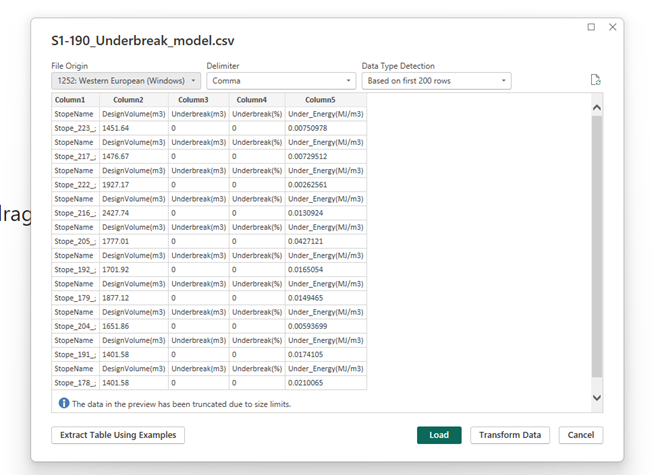
Repeat the loading steps for each of the text/csv files.
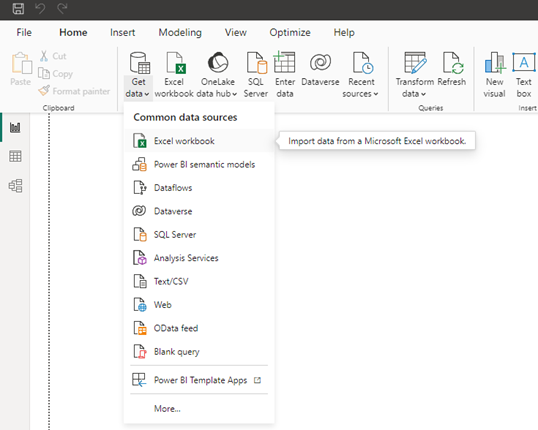
Next, if you have any excel files, repeat the loading steps, but load an excel workbook:
Choose the worksheets you wish to load from the excel file:
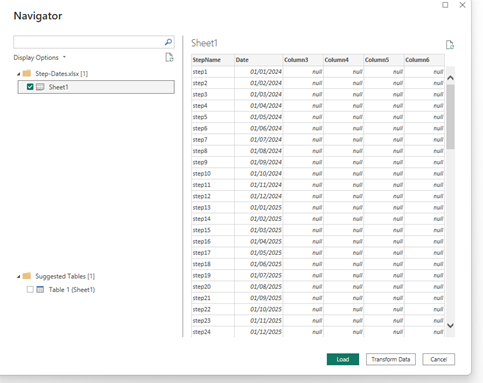
Your data is now loaded into the project
Data Preparation and Cleaning
The data loaded directly from RocboX will need some tidying up. As mentioned before we’ll keep any transformations to a minimum, so that any updates to the data sources are more likely to maintain compatibility.
Open the transform data interface:
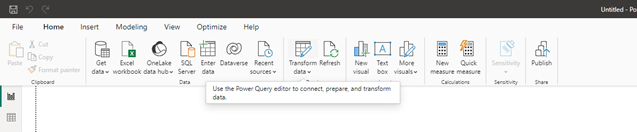
The transform data interface will show the imported data sources on the left:
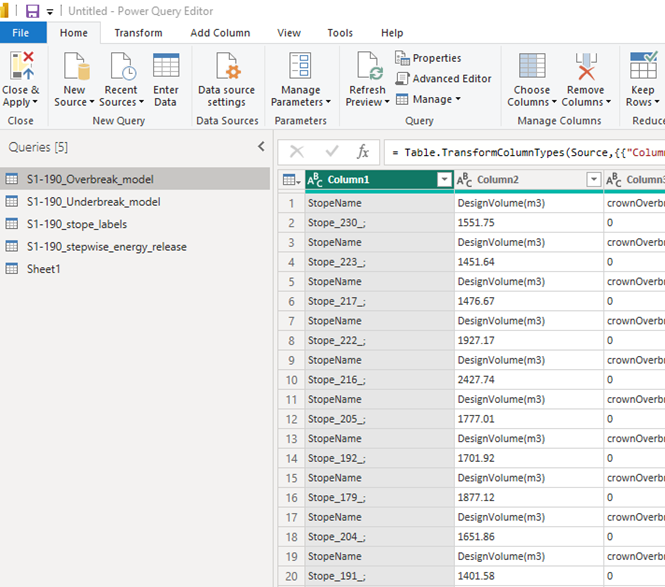
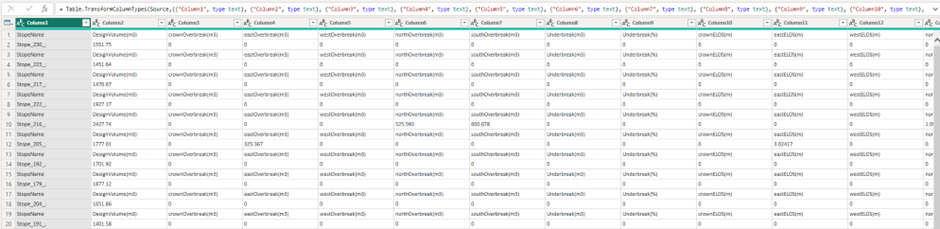
Clicking on each of the sources will open the data table that has been imported.
On the right hand side, you will see the applied transformation steps for that data source, these should be considered as the changes that are made to the raw file, before the PowerBI visuals can access the data. Usually there will be some steps already applied related to the import of the file.
Starting with the Overbreak_model.csv file, there are a number of changes that need to be made.
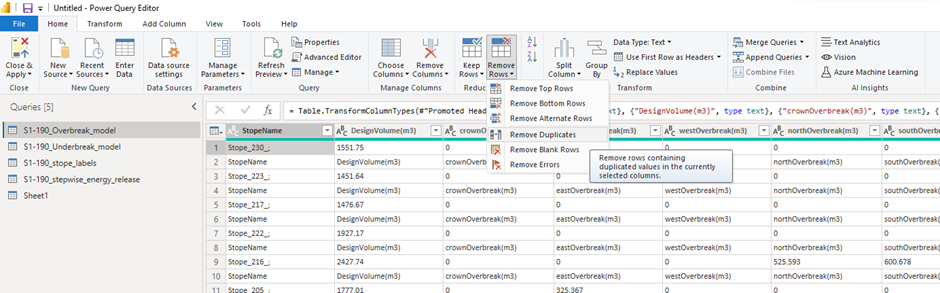
1. Repeated Header Rows
Rocbox results include a header row every few lines in the output files, these need to be removed.
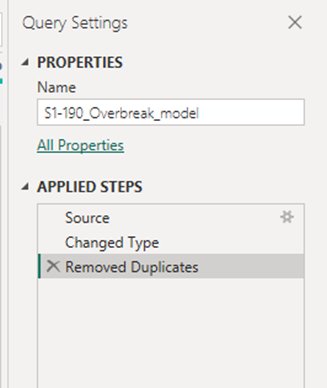
To do this, select the first column, then in the ‘home ribbon’ click Remove rows > Remove Duplicates.
You will see the ‘transformation step’ added to the list on the right:
2. Column Headers
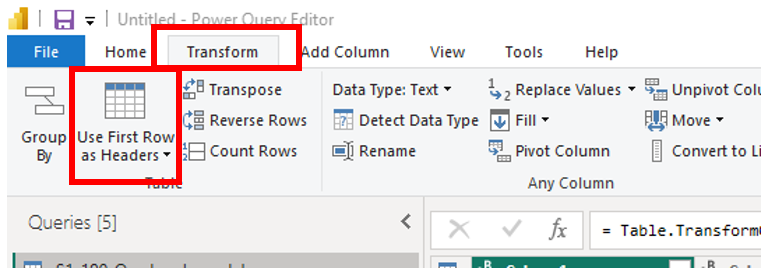
The column headers are shown in the first row of the data and the column names are just column1, coumn2… etc.
To correct this is simple, just click on the ‘Use First Row as Headers’ button.
3. Correct Stope Names
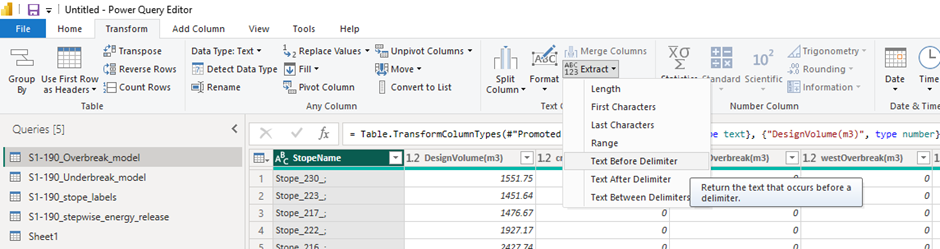
The stope names have a suffix of “_;” in each row. We need to remove this so that the names can be linked across data sets.
We can use the extract option, first select the StopeName column then click Extract > Text before Delimiter in the Transform Tab:
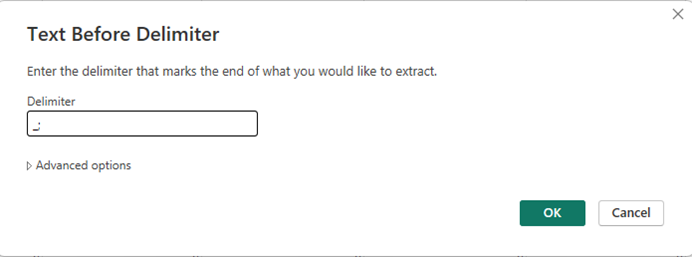
Enter the Delimiter “_: in the dialogue box, and hit enter:
The Overbreak Data is now clean and ready to use, with only 3 manually applied transformations.
Repeat the same steps for the underbreak data file.
Transformations for remaining Files.
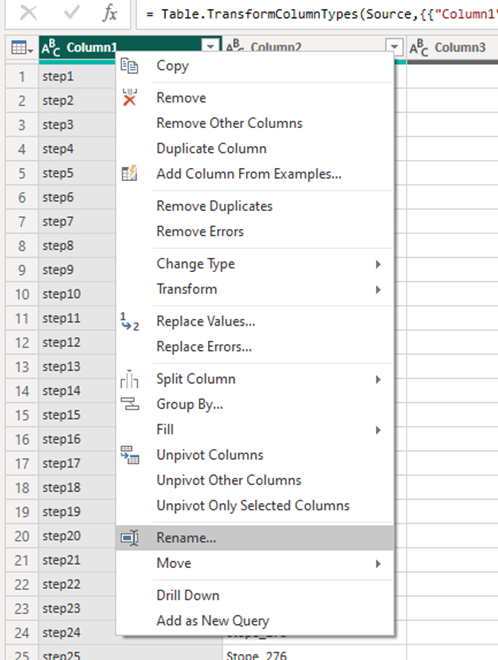
The stope Labels file is almost there, but just needs some column headers.
Right click on the column header and select ‘Rename’ and call them something reasonable:
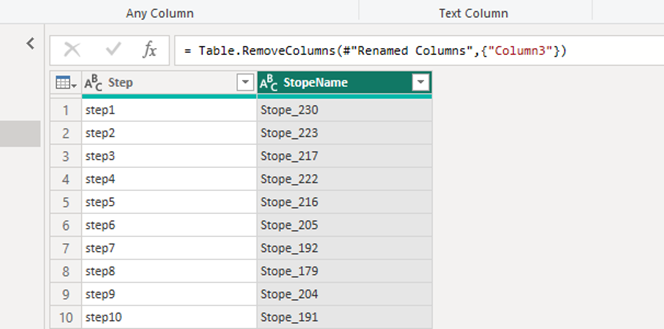
If any of the data files have blank columns, you can also delete them.
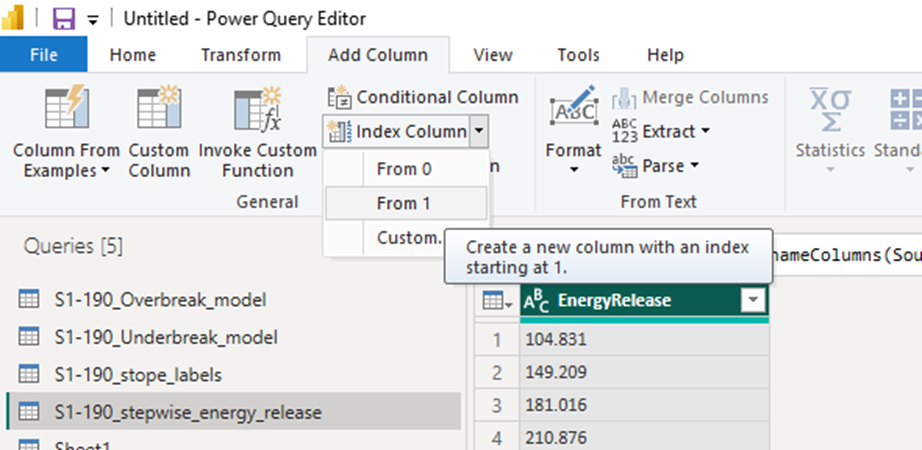
The stepwise Energy Release contains just one column, you should rename the column, then we need to add a column with the step names.
First we can add an index column, starting from 1:
Then we can add a step column, for this example we can use the ‘column from examples’ tool:
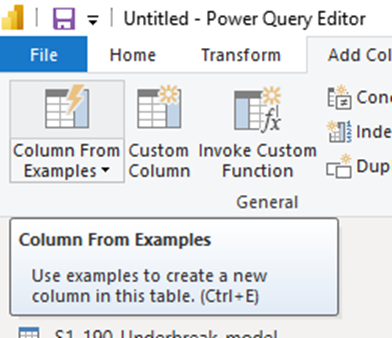
A column will appear, and you can type an example entry, in this case ‘Step1’, making sure the index column is ticked will be enough for powerBI to work out what you want to do, and autofill the rest of the rows.
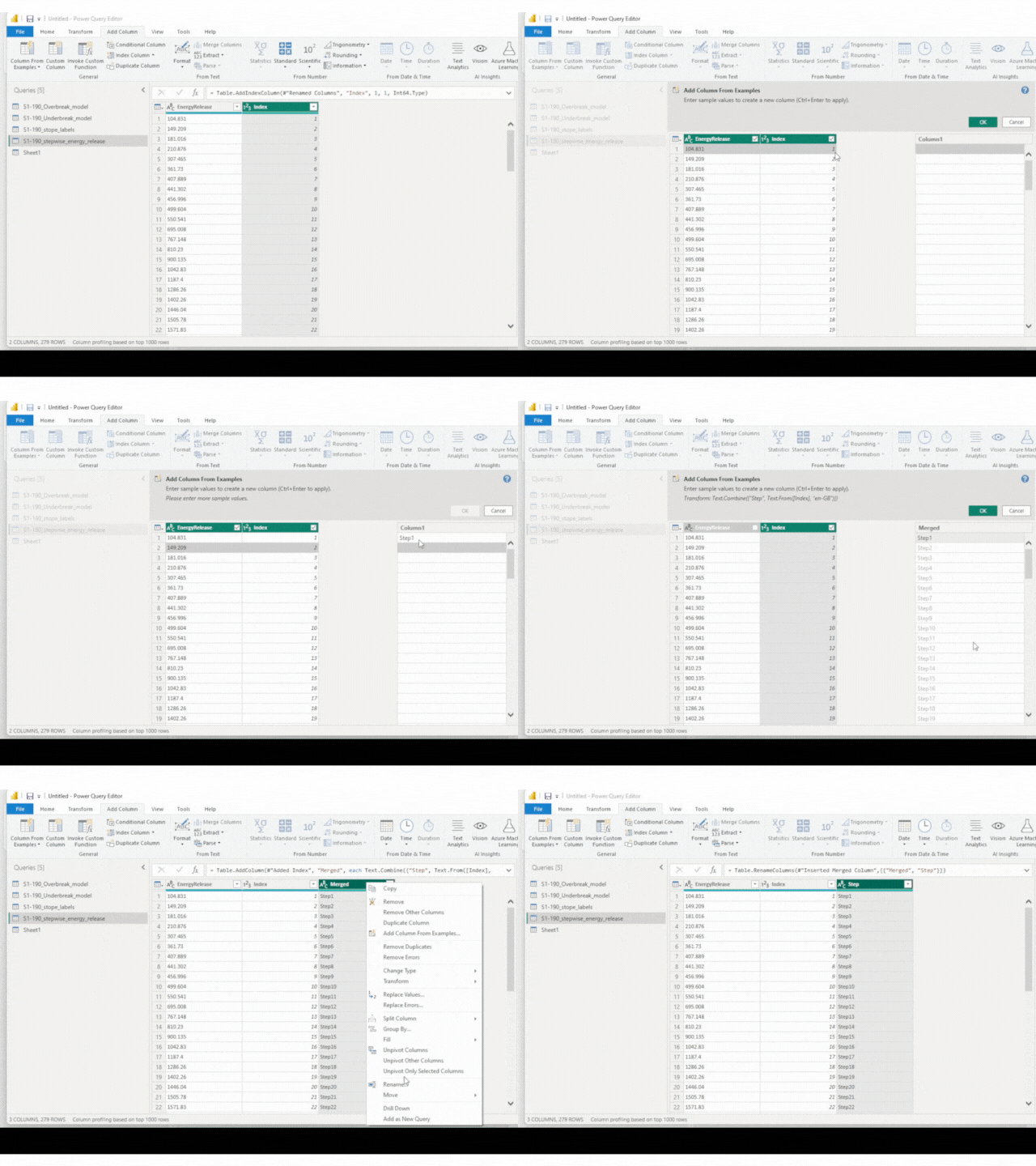
Finally the ‘step–date’ file you imported should be ready to use, but you can rename the table if it is called something like ‘Sheet1’ by default.
Now all the data is ready to go, you can close the Transform Query Editor Window and apply your changes!
The Model View window
The final step in building a PowerBI project is creating relationships between the imported tables. This is where the magic happens, and the step that means you don’t have to spend time creating a single ‘mega table’
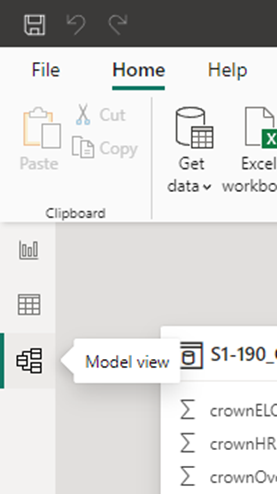
In the PowerBI interface, click on the model view tab:
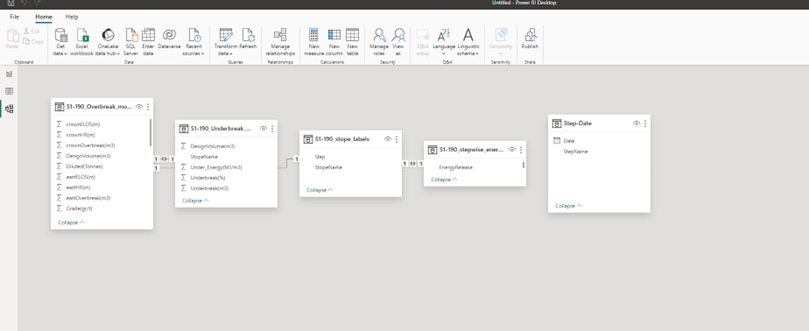
You will see a map of the imported data with some links automatically created by PowerBI, something like this:
You can drag the boxes around, to show things more clearly:
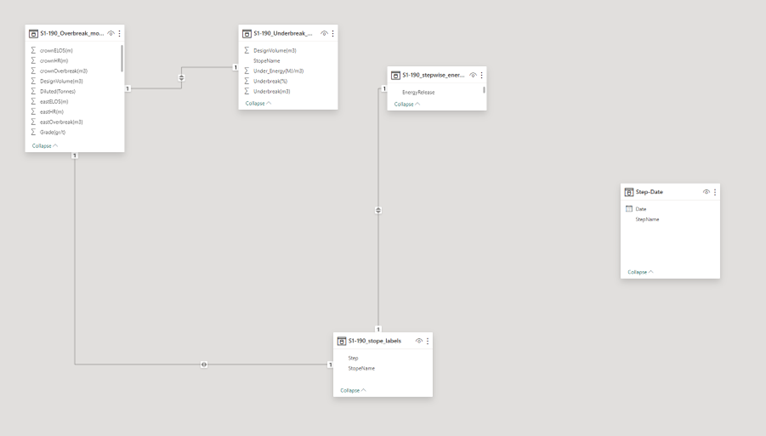
First, lets delete the automatic links, they are often incorrect! Just right click the lines and click delete:
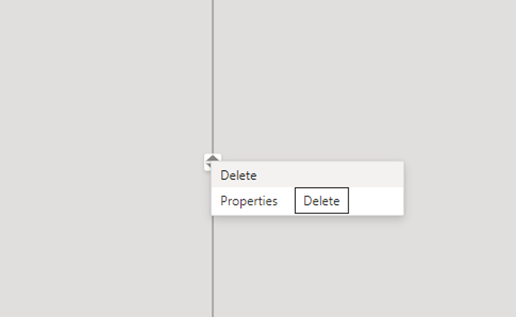
Now, to create the correct relationships, we just need to drag and drop matching fields between the sources once complete, you can see there is a path that links all sources. Sometimes the path is through another data set.
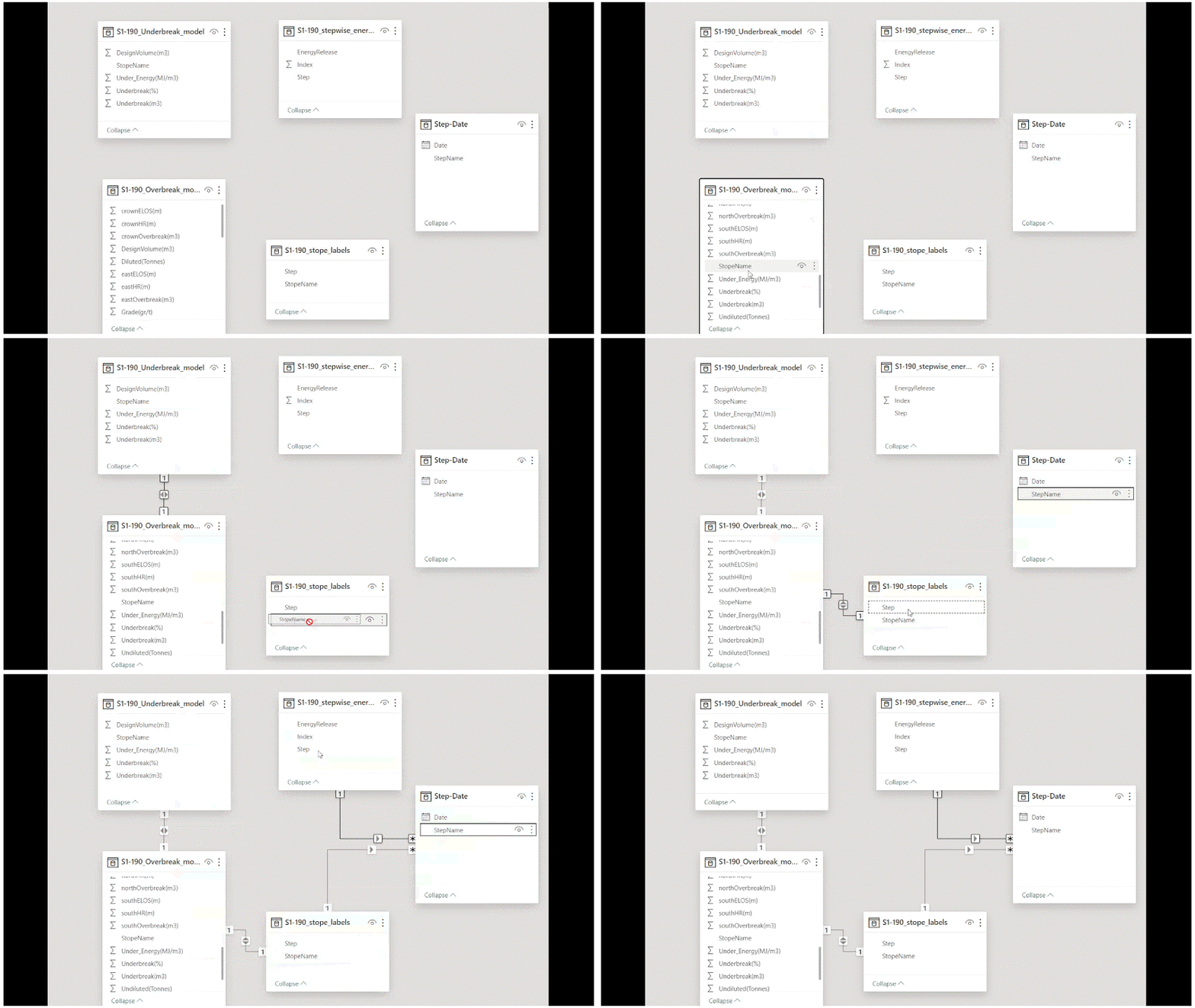
Once the relationships are set up, you are ready to build some dashboards using any of the data field shown on the right of the PowerBI screen.
You can see here a single plot using data from the two separate data tables.