This guide assumes you have generated an exodus file for your model results, and covers how to set up a Paraview template including some standard customisable plot items.
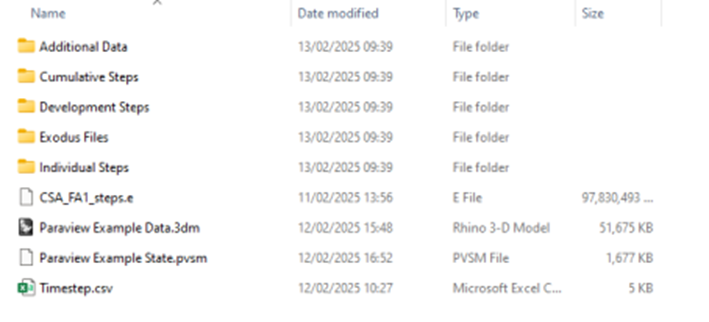
First, in order to assist with transferring ParaView models and files to other users, it makes sense to maintain a well organised file structure. Working on your local drive is always easiest. The following folder structure is recommended:
• Cumulative Steps (Folder)
• Individual Steps (Folder)
• Development Steps (Folder)
• Exodus Files (Folder)
• Additional Data (Folder)
• Paraview State (PVSM)
• Step_Date_Lookup File (CSV)
• Model Results Exodus File (.e)
You will also need access to Rhino.
0. Renaming Exodus Attributes
If you have a raw exodus file from a StopeX cloud run – the attributes will have generic names eg. ‘Zone Output 1’. To change these to meaningful names is quick and can be done with the latest Cavroc – Rhino Toolbar:
https://drive.google.com/drive/folders/10Ev38KrbAuRyNYCxIRdu7m6As4XPWH4k?usp=sharing
Open Rhino, and type ‘Rename_exo_Attributes’ into the command bar, hit Enter
Navigate to your exodus file, click open.
Within a few seconds, the attributes will be renames and you can continue with this guide.
1. Creating Step Geometry visuals
To Visualise Step geometries in ParaView we need to consider the two items we would typically like to see:
1: the current mining Step,
2: the previously mined areas.
Current Mining Step
The current mining step is simple, you can use the geometries previously created for StopeX. Within ParaView, simply go to
- Go to file -> open
- navigate to the step[n].stl files (they should automatically be recognised as a time series) and click ok

- Click the time series that appears on the left-hand side of the screen and click open
- Click the Apply button in the ParaView window
Changing the time step at the top should now show you each step geometry in turn.
Visualising PReviously Mined Areas
The Cavroc Toolbar for Rhino can be used to generate the files needed to visualise previously mined areas.
• Open Rhino
• Use the ImportFolderFiles tool in the Cavroc Toolbar to load the Step geometries (STL files) that were used in StopeX/FLAC

- Select the ‘steps’ folder and load the files:

- Right-click on the Export Layers As STL button in the Cavroc Toolbar
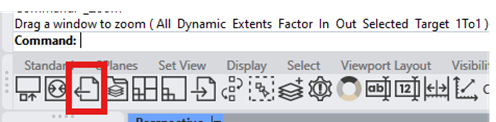
- Select Export To A Destination Folder
- On the pop-up, Select Step 1, hold shift, scroll down and select the Final Step. This should highlight all of the steps. Click OK
- Export the files to the Cumulative Steps Folder you set up earlier
- Return to Paraview. File Open
- Navigate to the Cumulative Steps Folder and open the timeseries. It should appear on the left-hand side in the ‘Pipeline Browser’
- Rename the items in the Pipeline Browser so that you know which is Cumulative and which is the Current Step.

2. Adding Step/Date annotation to window
When visualising outputs in Paraview it is important to know what mining step/date you are viewing. This can be done by adding an annotation, and will appear in the top-left hand corner of the viewing window.

- Once the .csv file has been created and saved in the project folder, go back into ParaView and right-click the Exodus file. Add filter -> Alphabetical -> Programmable Annotation

- A script box will appear on the left when you click the Annotation in the Pipeline Viewer. Paste the following Script into the script box, making sure to update the path to your csv file. Include the ‘import csv’ at the top – that is part of the script, not a title!
- Click Apply
import csv
# Path to your CSV file (update with your correct path)
csv_file_path = r"[Path to file]"
# Initialize the lookup table
lookup_table = {}
# Load CSV without using headers
with open(csv_file_path, newline='') as csvfile:
reader = csv.reader(csvfile)
# Skip the header row
next(reader)
# Populate the lookup table from column 0 and column 1
for row in reader:
time_step = int(row[0]) # Column 0: TimeStep
annotation = row[1] # Column 1: Annotation
lookup_table[time_step] = annotation
# Get the current time from the active data source
current_time_step = int(self.GetInputDataObject(0, 0).GetInformation().Get(vtk.vtkDataObject.DATA_TIME_STEP()))
# Return the corresponding annotation or fallback message
annotation = lookup_table.get(current_time_step, f"No Annotation for TimeStep {current_time_step}")
# print(annotation)
to = self.GetTableOutput()
arr = vtk.vtkStringArray()
arr.SetName("Text")
arr.SetNumberOfComponents(1)
arr.InsertNextValue(annotation)
to.AddColumn(arr)
return annotation
You can adjust position and formatting of the annotation in the Properties tab below the Pipeline Browser.

3. Creating a ‘difference’ attribute for stepwise plotting
The previous Temporal Array operator method introduces some issues with attributes loosing sync with the time viewer. This updated method resolves the issue but requires Paraview 6.0 or later.
First you must import a custom Macro, save the file below in the folder (remove this line if copy pasting: Displaying step_Diff_Macro.py.)
Then go to Tools -> Manage Macros
then click to add a macro, and navigate to the downloaded .py file:
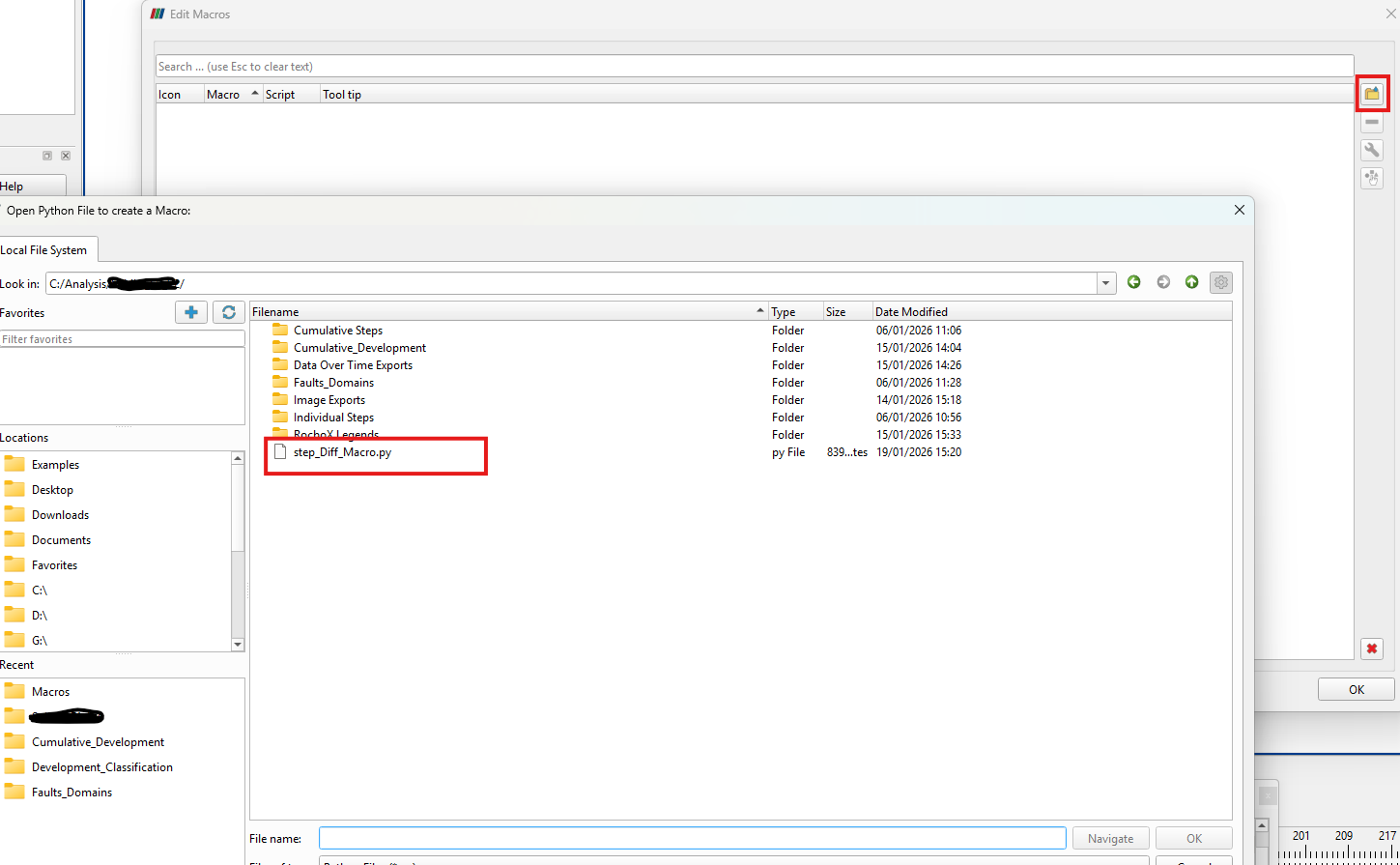
Now you can click to run the Macro at the top of the paraview window:
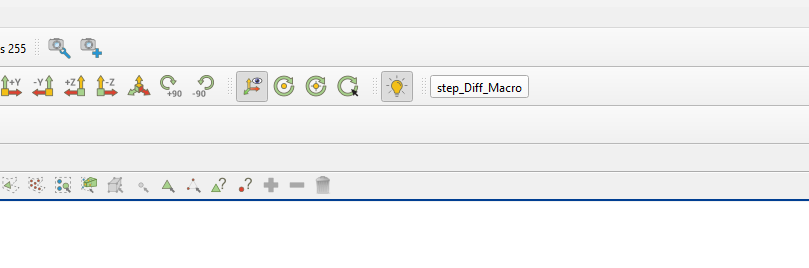
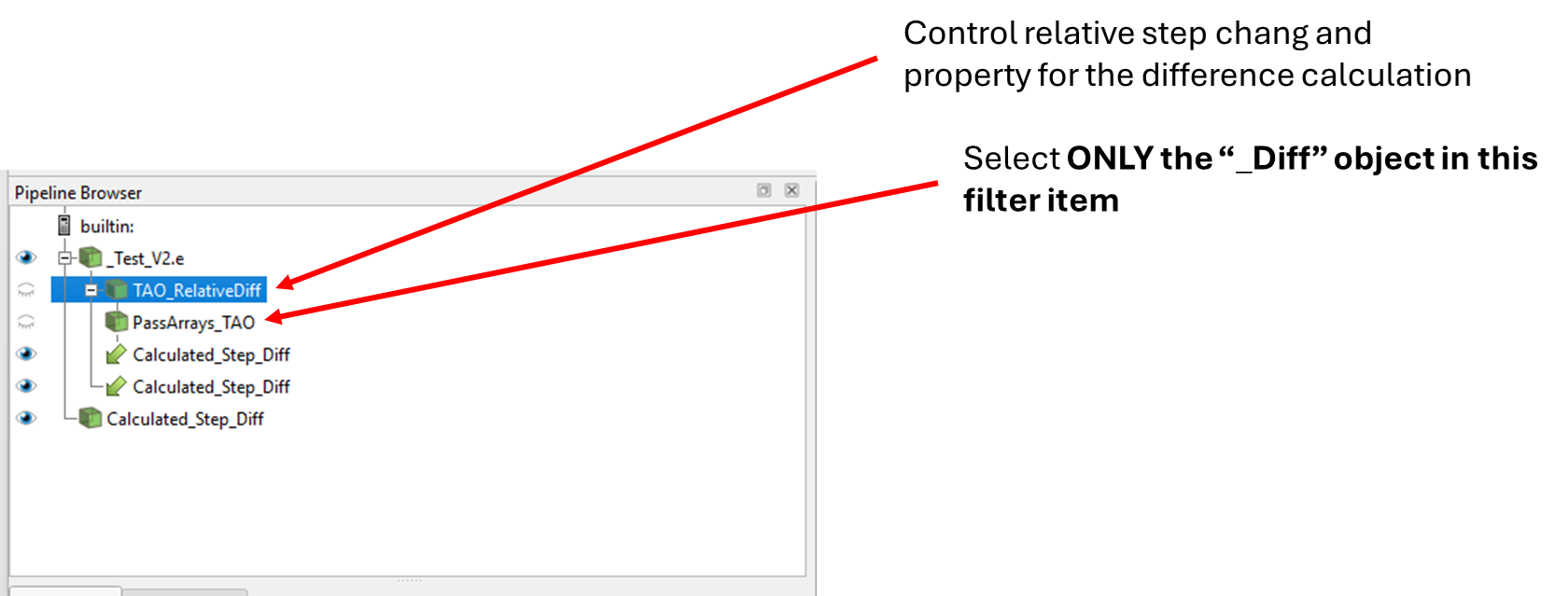
This filter will not work on the first step (as there is no previous step to calculate from!)
Adjust the ‘TAO_RelativeDiff’ Item to change the difference interval, set to ‘-1’ means step n-1 will be subtracted from the current step, -2 is n-2 etc.
The ‘Select Input Array’ drop down specifies which property will be calculated.
Edit the “PassArrays” line: it is important that you select the appropriate difference array only. When you change the input array, you will also need to select the new difference array in the ‘Cell Data Array’ Box
Visualisation and subsequent filters should be applied to the final ‘Calculated_Step_Diff’ Object.
4. Filtering out mined zones
Now this is all set up it is possible to filter out mined zones using the Step Number attribute stored in the model.
- Right-click the Calculate difference between Steps item you just added
- Add filter Alphabetical Threshold
- In the Properties tab, select ‘Step Number Field (Zone Output 14)’
- Set the lower threshold to 1 and the upper threshold to your current time step +1 (remember Paraview time steps always start at 0, not 1!)
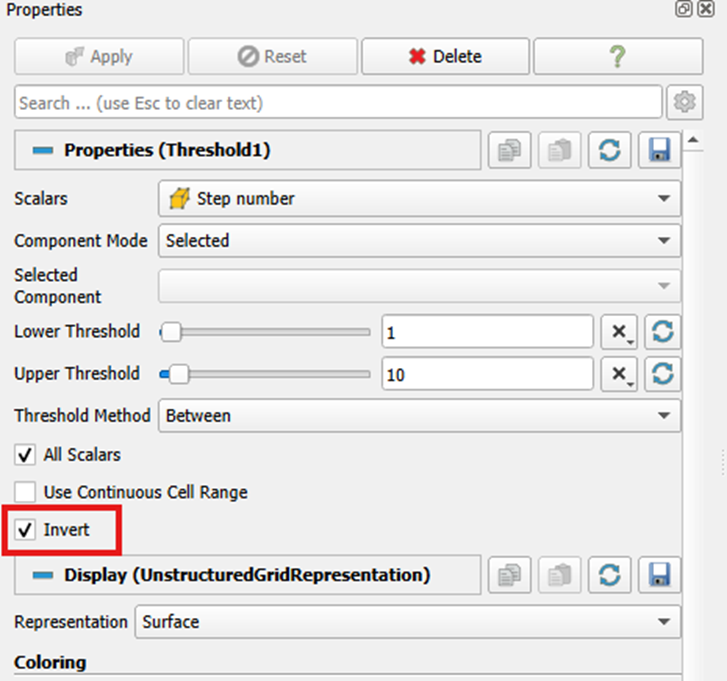
The display should now be showing the mined-out steps, removing the rock mass that remains. We now need to reverse this filter
- Check the Invert check-box in the Properties tab
- Click Apply
- You can now rename this Threshold – e.g. Filter out Mined Zones
5. Creating slice visual
A slice visual makes it easy to visualise particular areas of the model. There are two options
- A slice that shows discrete zones and their relevant value
- A slice that provides a smoother gradient between zones
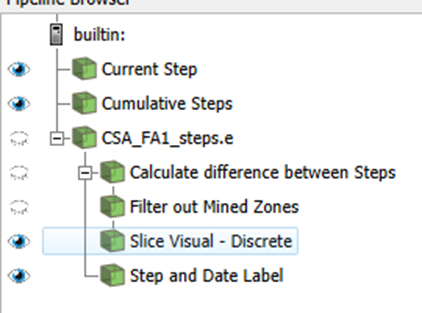
Adding a Discrete Slice:
- Right-click on the ‘Filter Mined Zones’ item
- Add filter > Alphabetical > Slice
- Click Apply
- Rename the object in the Pipeline Browser to something like Slice Visual - Discrete
The colouring options can be adjusted and the slice can be dragged around the screen as required.
Adding a Gradient Slice:
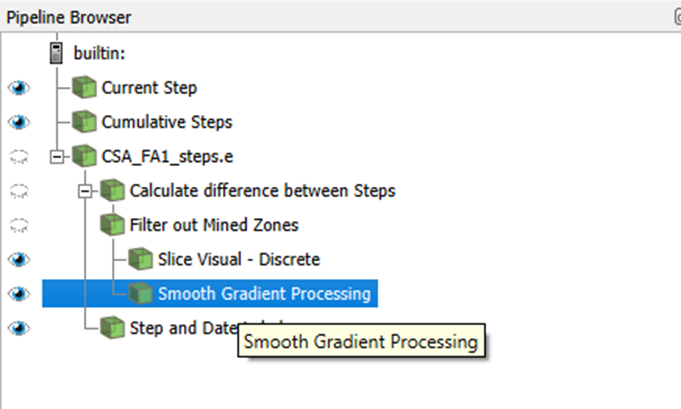
- Right-click on the ‘Filter Mined Zones’ item
- Add filter > Alphabetical > Cell Data to Point Data
- Click Apply
- Rename the object to something like Smooth Gradient Processing
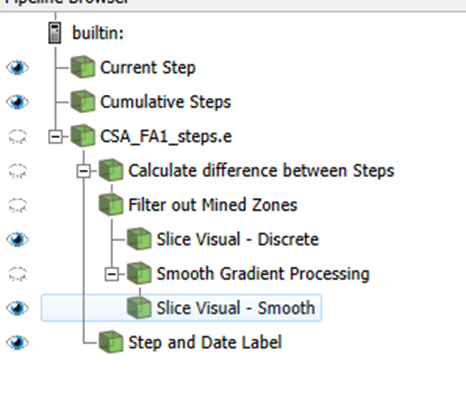
- Right-click the Smooth Gradient Processing Object
- Add Filter Alphabetical Slice Filter
- Click Apply. This one will now show smooth gradients when visualising any attribute.
6. Iso Surface Visual
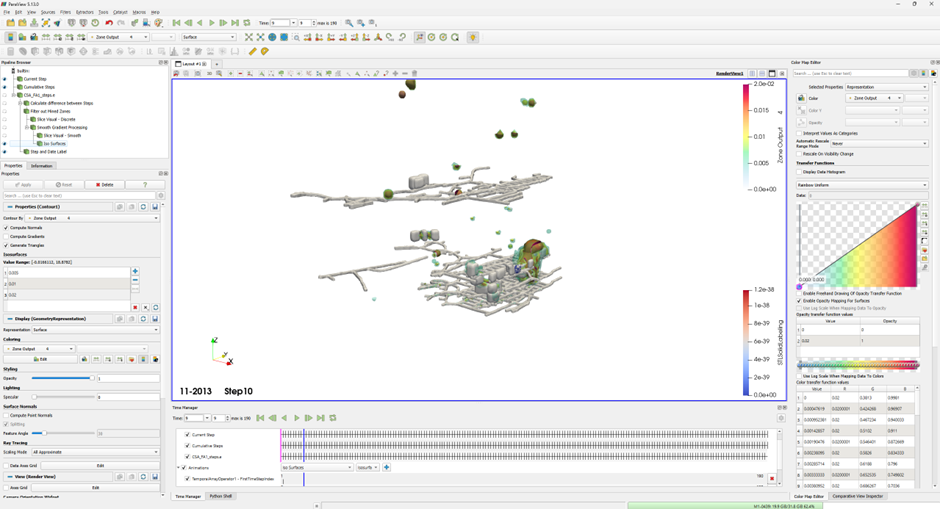
Adding an Iso-surface object is simple now that the smooth gradient processing is already done.
Right-click the Smooth Gradient Processing object
Add Filter > Alphabetical > Contour
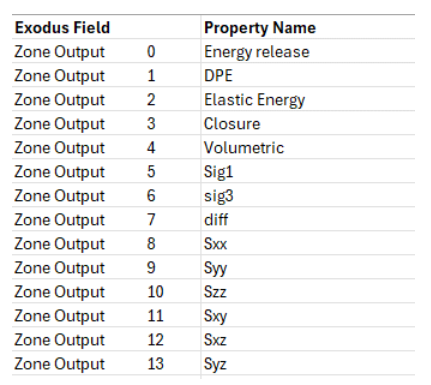
Choose a field. This is example we’ll use Zone Output 4, which is Volumetric Strain (he correlation between Zone Output number and attribute is shown in the table below)
Choose values for the ISO Surface e.g. 0.5%, 1% and 2% for Volumetric Strain
Click Apply
Adjust the Colouring field and colour ramp as desired. Use opacity mapping when plotting multiple iso-surface values
7. Painting Geometry
We are mainly interested in painting the development geometries with contours from the model. To get the best results in ParaView, it is often easiest to go back to Rhino and create a folder of cumulative development steps.
- Import the mining steps into Rhino as per the Step Geometry Guide above using the Import Folder Files option in the Cavroc toolbar
- Arrange the layers in ascending order again (e.g. Step 1, Step 2, Step 3…. Step n)
- Delete the Stopes to leave just the development (the ‘Select by Volume’ option in the Cavroc Toolbar can be useful for this)
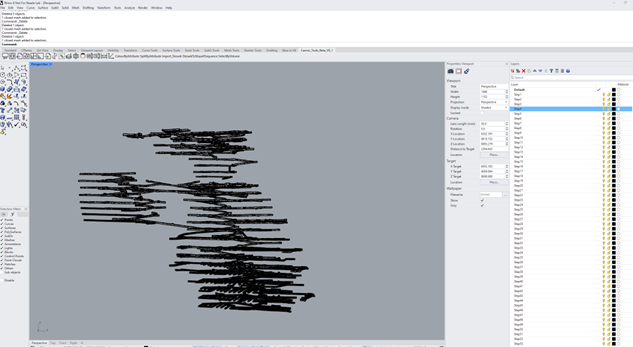
- Click the Geometry Wrap option in the Cavroc Toolbar
- Select Layer Based from the pop-up
- Set the Resolution to 1 or 2m (note this impacts file size as well as how the contours are painted)
- Set the Offset to between 0.25 and 1m to ensure the new geometries are larger than the excavation so they are painted by the rock mass adjacent to the opening
- Set the Polygon Optimisation to 0% to ensure a uniform mesh grid
- Select all layers for wrapping
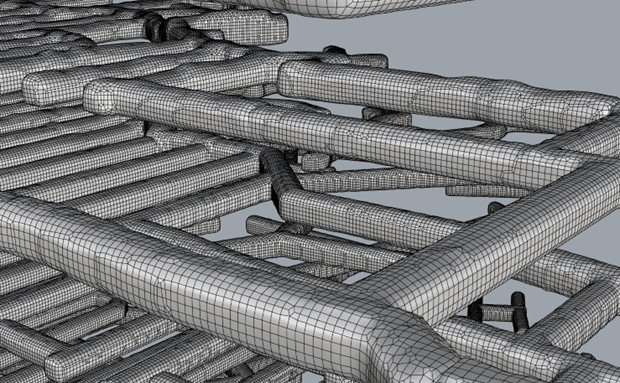
- Right-click the Export Layers as STL button
- Create a new destination folder called Cumulative Development Strings and select this as the output destination. The layers should now export into that folder.
- Return to Paraview. File > Open and open the steps as a time series
- Rename the object to something like Cumulative Development
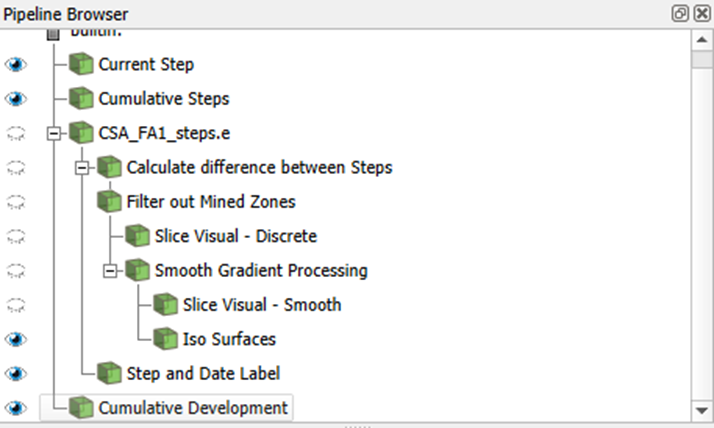
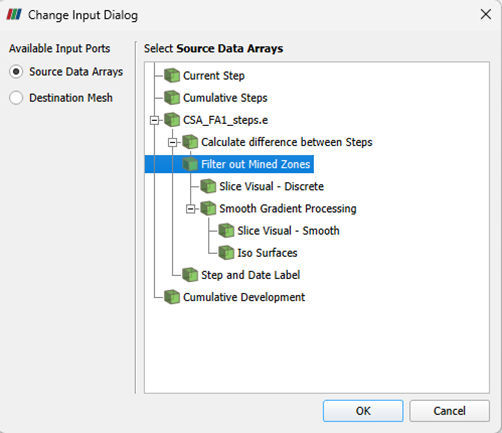
- Right-click the Cumulative Development object
- Add Filter > Alphabetical > Resample with Dataset
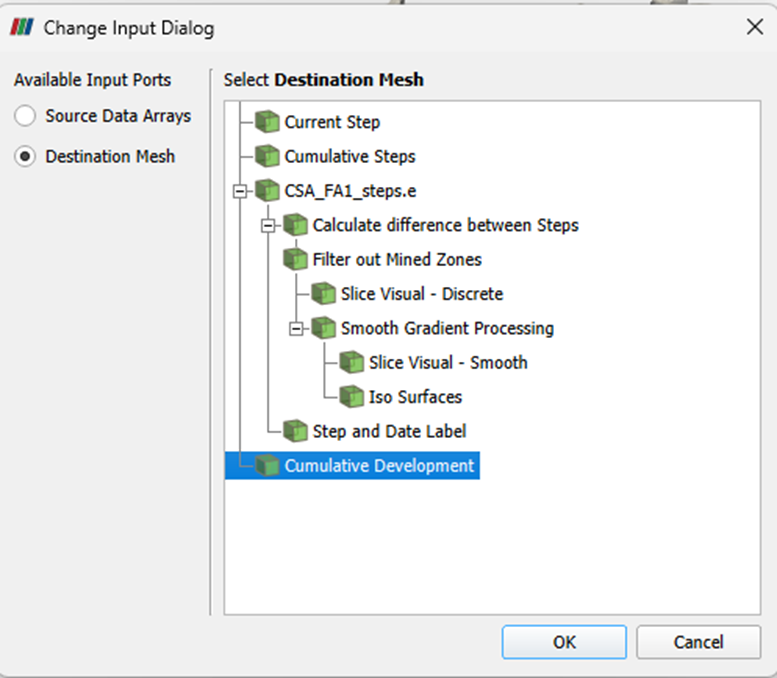
- In the dialogue box that appears set the Source Data Array as the ‘Filter Mined Out Zones’ object. Don’t press OK yet
- Click the ‘Destination Mesh’ circle on the left and select the ‘Cumulative Development’ object
- Click OK
- Click Apply
- This will create a few objects in the pipeline browser that are linked to one another – Rename one of them and it will apply to all the linked items.
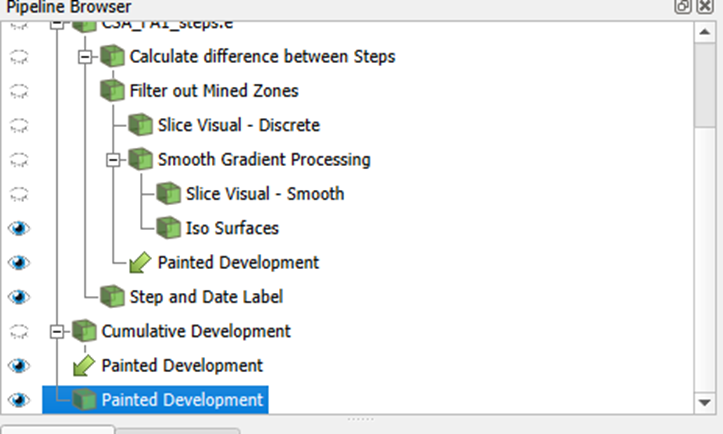
The new object will now have all of the model fields to select from for colouring:
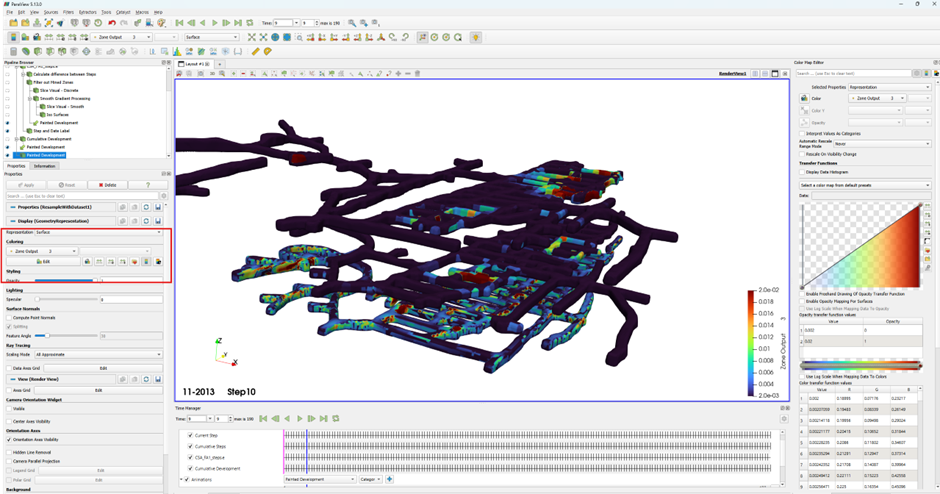
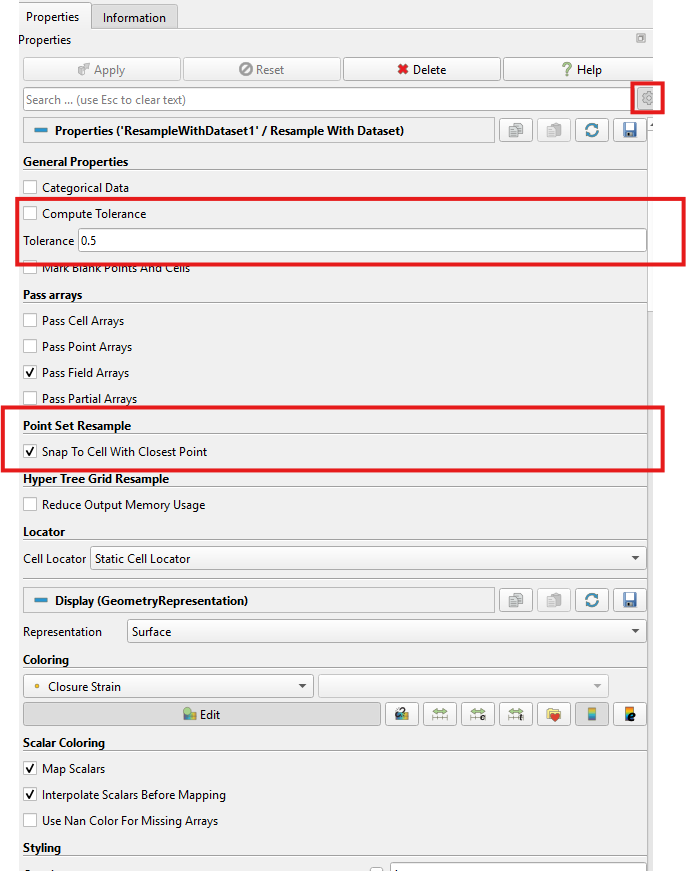
using the advanced settings, the contouring becomes smoother and is not influenced by the mined out zones, click the ‘cog’ icon in the top right of the properties panel, then manually enter a tolerance of 0.5m, and selct ’Scap to cell with closest point.