The following is a basic guide to the RoxboX – Stope Intel features available in the rhino Cavroc toolbar.
Import RocboX Results.
The import results function require you to select the model working folder where RocboX has been run. In the background the importer will identify the RocboX input file, and stome names files to import the relevant stope shapes. The overbreak and underbreak csvs will also be read with results applied to the object properties in rhino:
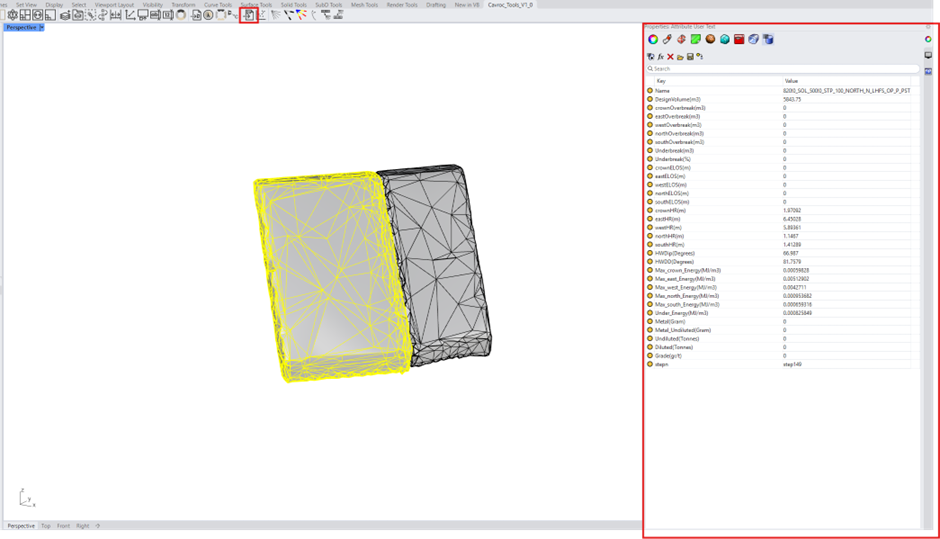
Alternatively, you can place your design stls, stope names file, overbreak and underbreak csv files and rocboX input file in a folder and point the importer to the folder.
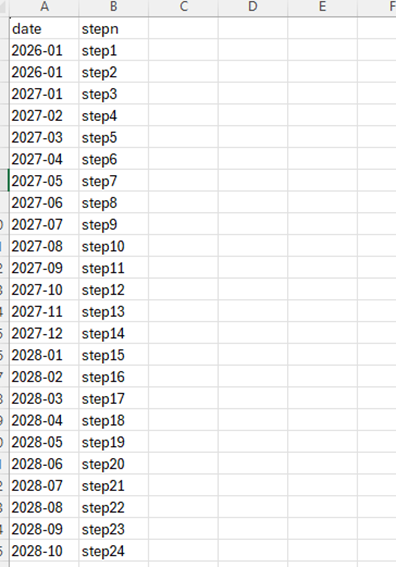
You will also be prompted for an optional ‘step to Date’ csv file (example below), this will be used to add the date as an attribute.
Visualising Results
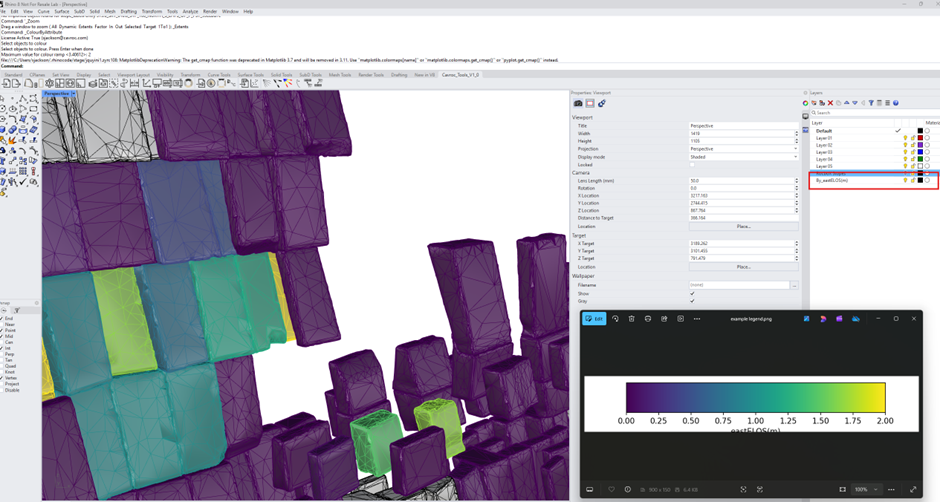
Using the ‘ColourByAttibute’ command, you can apply contours to the stope shapes based on any of the RocboX values.

Follow the prompts in the command bar to first select the stopes for mapping colours, then specify the attribute, and minimum and maximum contour values. The colour ramp can be selected from a list of default colour ramps.
You will be prompted to save the legend as a png file.
The colour mapped stopes will be placed in a new layer.
Plotting graphs
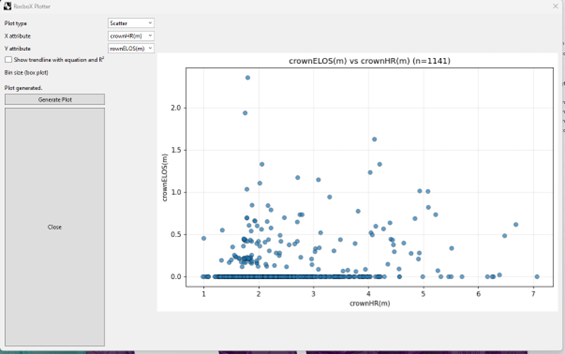
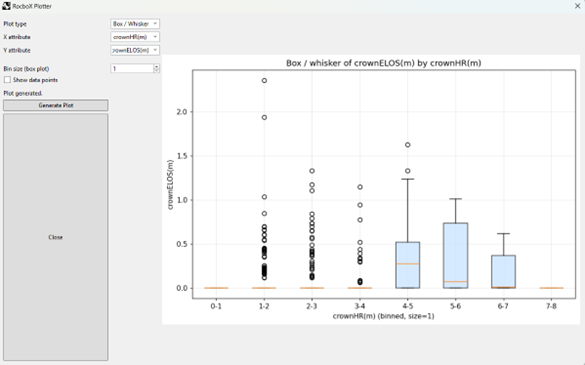
The ‘Plot RocboX Data’ button shows a simple interface for creating scatter, line, and box plot graphs for reporting.
Clicking the button will automatically load the data from the object attributes in the ‘RocboX Stopes’ Layer created at import.
Choose the graph type and the x/y attributes before clicking generate plot.
Tip: You can also make use of the drillhole functionality ‘Split DH to Bins’ to split the stopes into bins based on any of the attributes.