If you have never built a StopeX model before, start here
StopeX automatically constructs an octree mesh from the geometries and settings supplied by the user. You do not need to build the mesh manually, but you do control where the mesh is fine, where it is coarse and how far the refined regions extend.
Before looking at the settings, it helps to understand three terms:
- Zone – one three-dimensional calculation element in the FLAC3D model. If you come from a finite-element background, a zone is broadly equivalent to an element.
- Mesh – the complete collection of zones forming the model.
- Meshing – the process of dividing the model volume into zones of different sizes.
Smaller zones generally provide better geometrical representation and allow stress and strain gradients to be resolved in more detail. However, they also increase the total number of zones, memory requirements and model runtime. The aim is therefore not to make every zone as small as possible, but to place suitable resolution where it is needed for the engineering question being assessed.
The two levels of StopeX mesh control
StopeX mesh settings operate at two levels:
- Global controls, which establish the model extent, far-field mesh and overall zone-count target.
- Geometry-specific controls, which determine the mesh resolution associated with stopes, development, historical mining, areas of interest and other imported components.
Global Octree Meshing Parameters
Target Number of Zones in the Model
This is the approximate total number of zones that StopeX attempts to achieve during automatic mesh construction.
It is a target rather than an exact final value. The available octree sizes are discrete, and component-specific minimum sizes may prevent the routine from reaching the target exactly.
Increasing the target allows StopeX to use finer zones where refinement is permitted. It also increases memory usage and runtime.
Far-Field Zone Size
The Far-Field Zone Size controls the largest zones used away from the imported model geometries.
It also establishes the octree size hierarchy. Smaller available sizes are generated by repeatedly dividing the parent zone edge length by two. For example:
48 m → 24 m → 12 m → 6 m → 3 m → 1.5 m
This is why the far-field size and the other zone-size inputs should be selected as a compatible set.
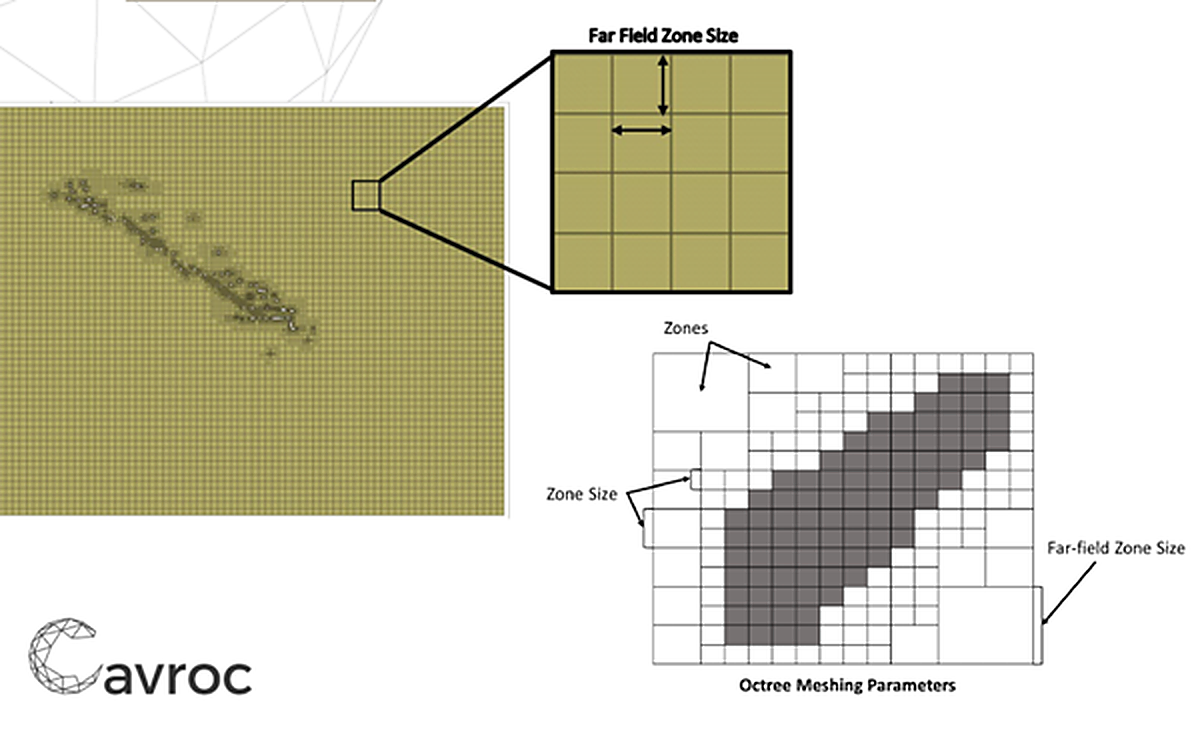
Figure 1 – Far-Field Zone Size
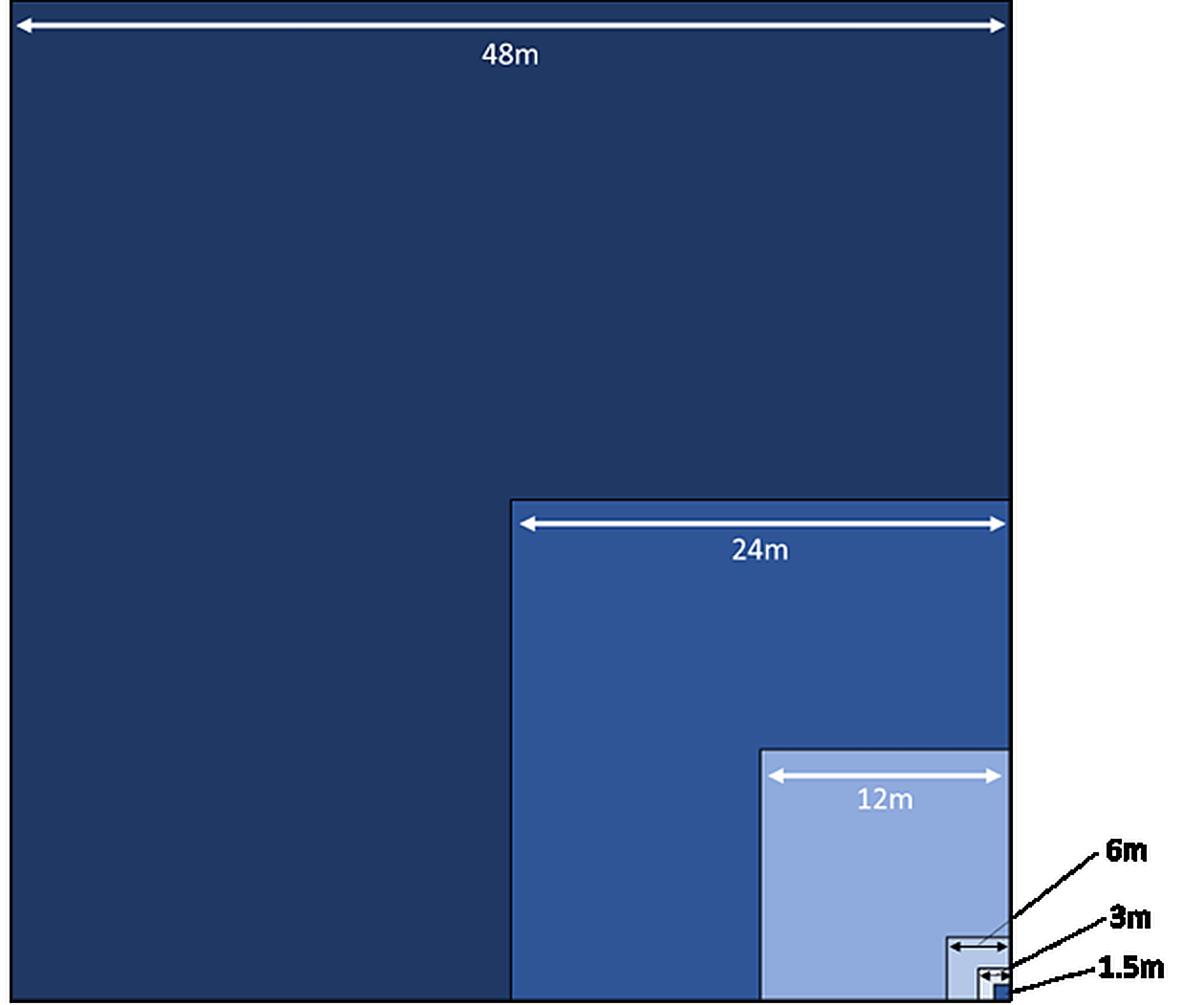
Figure 2 – Octree zone-size hierarchy for a 48 m far-field size
Model Boundary Offset
The Model Boundary Offset controls how far the external model boundaries extend beyond the imported geometries.
The boundary should be sufficiently far from the area being assessed to minimise artificial boundary effects. The appropriate value depends on the model scale, excavation geometry, stress field and purpose of the assessment. For important studies, the selected offset should be confirmed through engineering judgement or a boundary-sensitivity check.
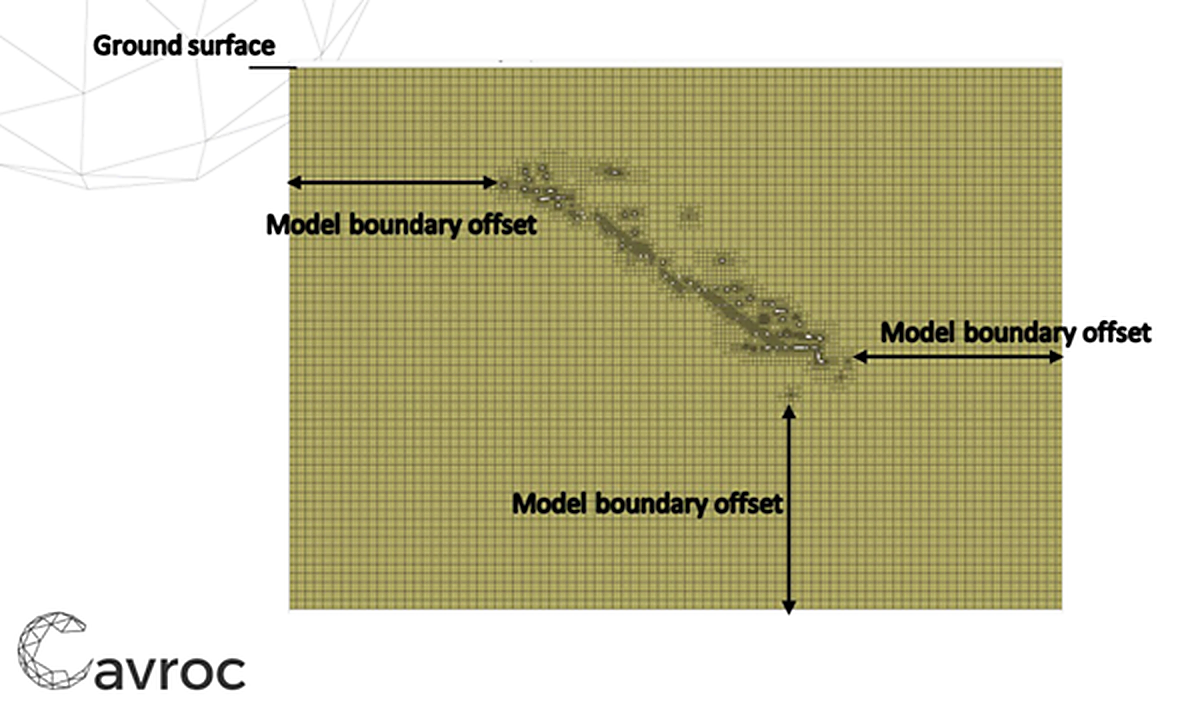
Figure 3 – Model Boundary Offset
Zone Size Multiplier During Initial Iteration
This global value, referred to below as M, provides the base edge length used by the Relative Geometry Accuracy setting.
It does not, by itself, define the zone size throughout every imported geometry. Its principal role in the geometry-specific settings is to determine the zone edge-length target immediately on the geometry boundary.
Model Construction Geometries
The Model Construction tab allows separate meshing controls to be assigned to different model components, including:
- stopes;
- development;
- historical mining;
- area of interest;
- topography; and
- faults or major structures.
The component names describe their typical use, but the imported files are fundamentally meshing guides. For example, a component placed in the Development category does not automatically become part of the mining sequence or a geotechnical domain.
The mining sequence is controlled by the model step files. Rock-mass domains are assigned separately.
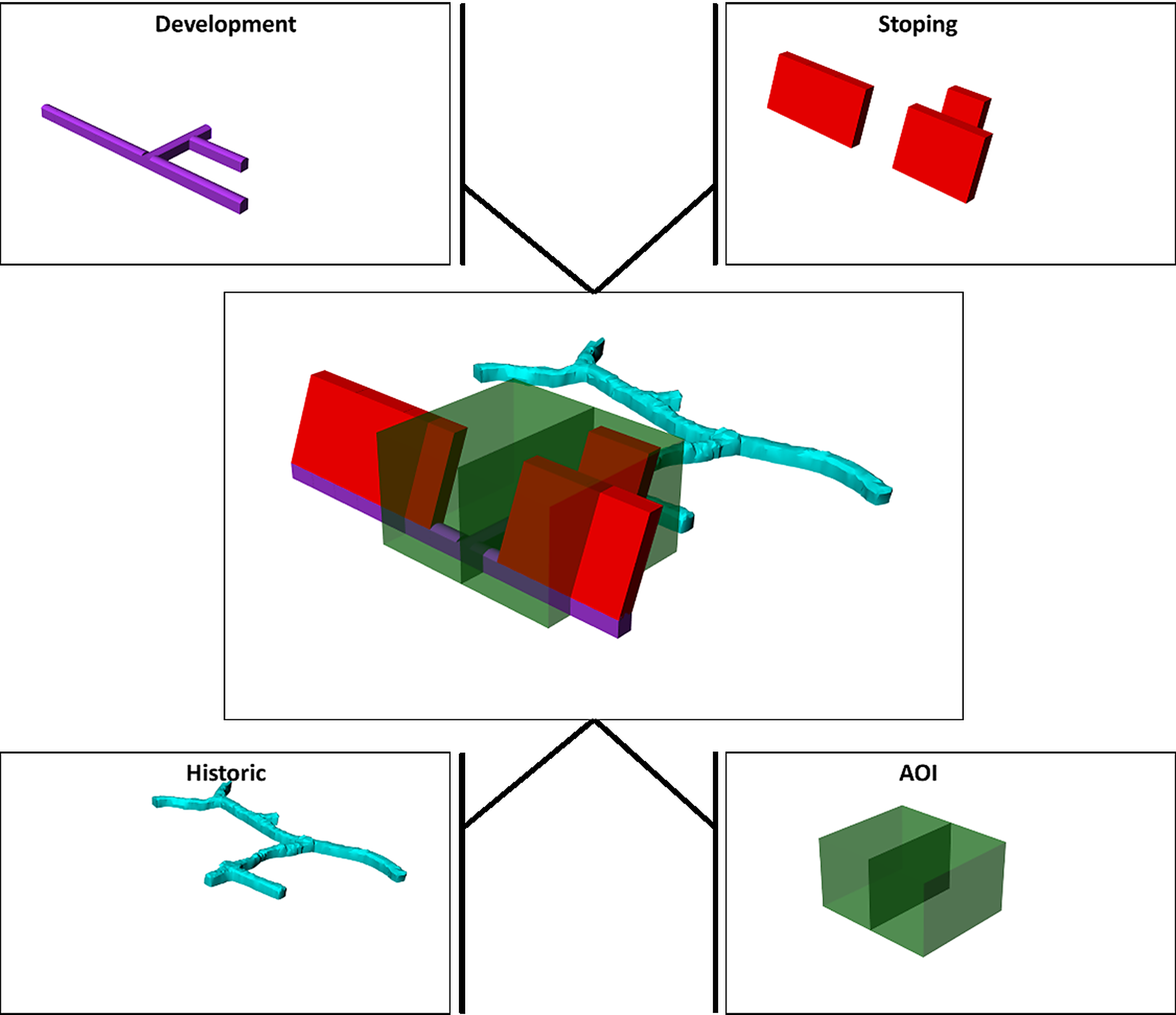
Figure 4 – Example Model Construction geometries
For closed solid components such as stopes, development, historical mining and an area of interest, four settings work together:
- Relative Geometry Accuracy;
- Initial Zone Size;
- Minimum Permissible Zone Size; and
- Zone Densification Distance.
The most important point is that these settings do not all act on the same part of the mesh.
Relative Geometry Accuracy
Relative Geometry Accuracy controls the maximum zone edge length immediately on the imported geometry boundary.
It does not control the zone size throughout the geometry interior or throughout the surrounding densification region.
The available settings are based on the global Zone Size Multiplier, M:
- Maximum: boundary edge-length target = M
- Intermediate: boundary edge-length target = 2M
- Minimum: boundary edge-length target = 4M
For example, if M = 3 m:
- Maximum uses a 3 m boundary target;
- Intermediate uses a 6 m boundary target; and
- Minimum uses a 12 m boundary target.
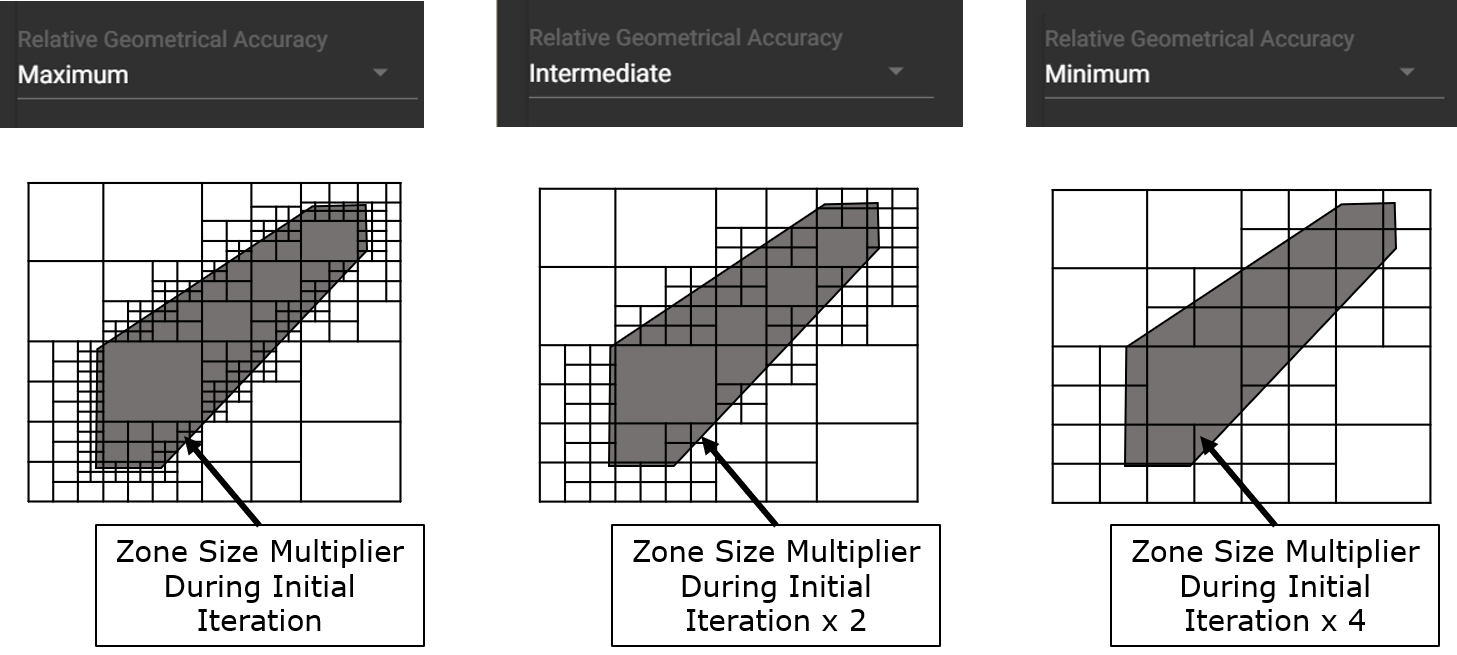
Figure 5 – Relative Geometry Accuracy comparison
Use finer geometry accuracy where the imported boundary must be represented closely—for example, around narrow development, small pillars or detailed areas of interest. Coarser accuracy may be appropriate for large historical voids or distant components that are included mainly to reproduce the correct stress path.
Initial Zone Size
Initial Zone Size controls the starting maximum zone edge length:
- inside the imported geometry; and
- outside the geometry, within the Zone Densification Distance.
This is separate from Relative Geometry Accuracy. It is therefore possible to represent the geometry boundary accurately while using larger zones inside the geometry and in the surrounding region.
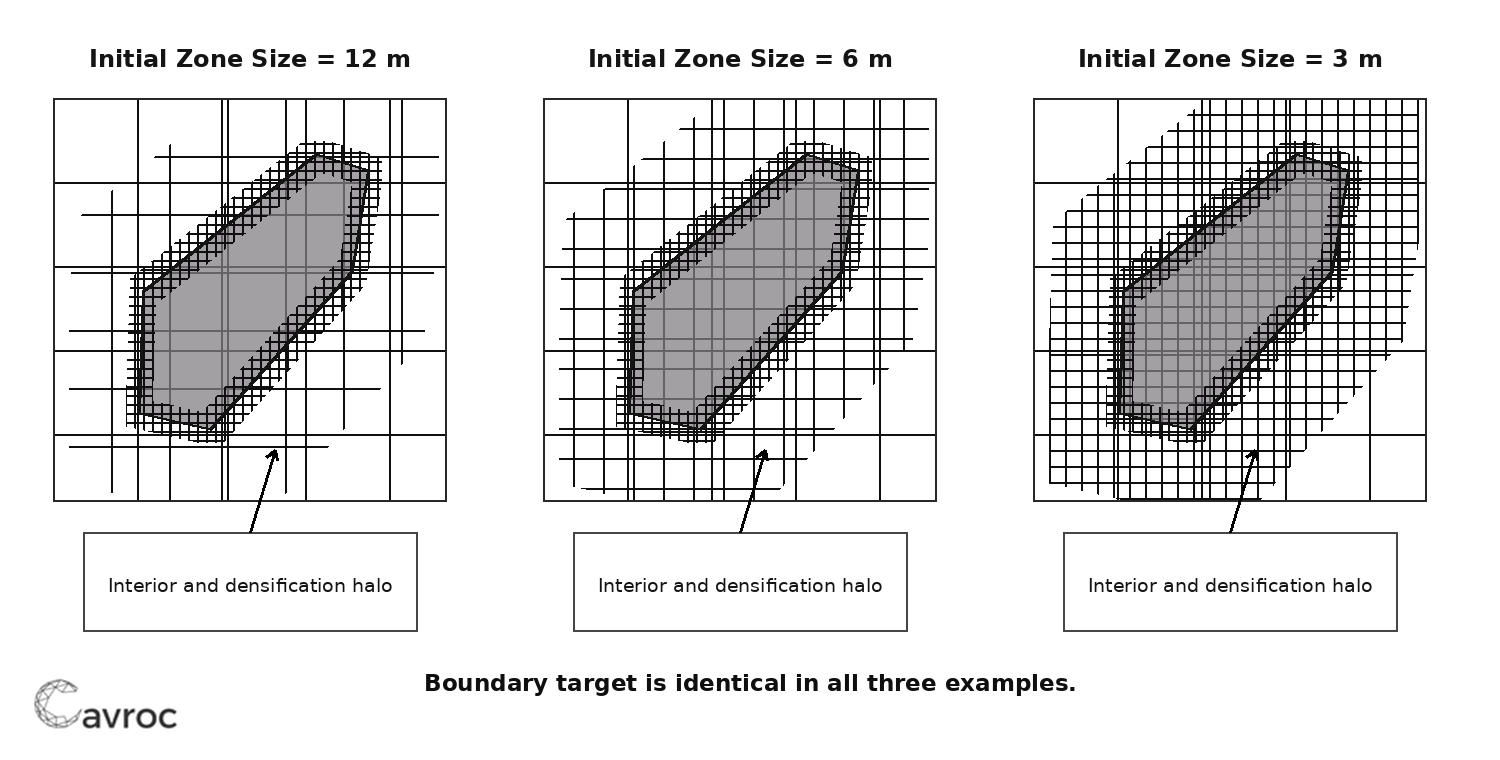
Figure 6 – Initial Zone Size comparison
The Initial Zone Size is the value used at the start of automatic mesh construction. Depending on the resulting total zone count, StopeX may subsequently refine or coarsen this value during later iterations.
Minimum Permissible Zone Size
Minimum Permissible Zone Size is the hard lower limit for automatic refinement of the component’s Initial Zone Size.
If the model contains substantially fewer zones than the target, StopeX may halve the Initial Zone Size during the next mesh iteration. It can continue refining until the Minimum Permissible Zone Size is reached.
For example:
- Initial = 12 m and Minimum = 6 m allows 12 m → 6 m, then refinement stops.
- Initial = 12 m and Minimum = 3 m allows 12 m → 6 m → 3 m, then refinement stops.
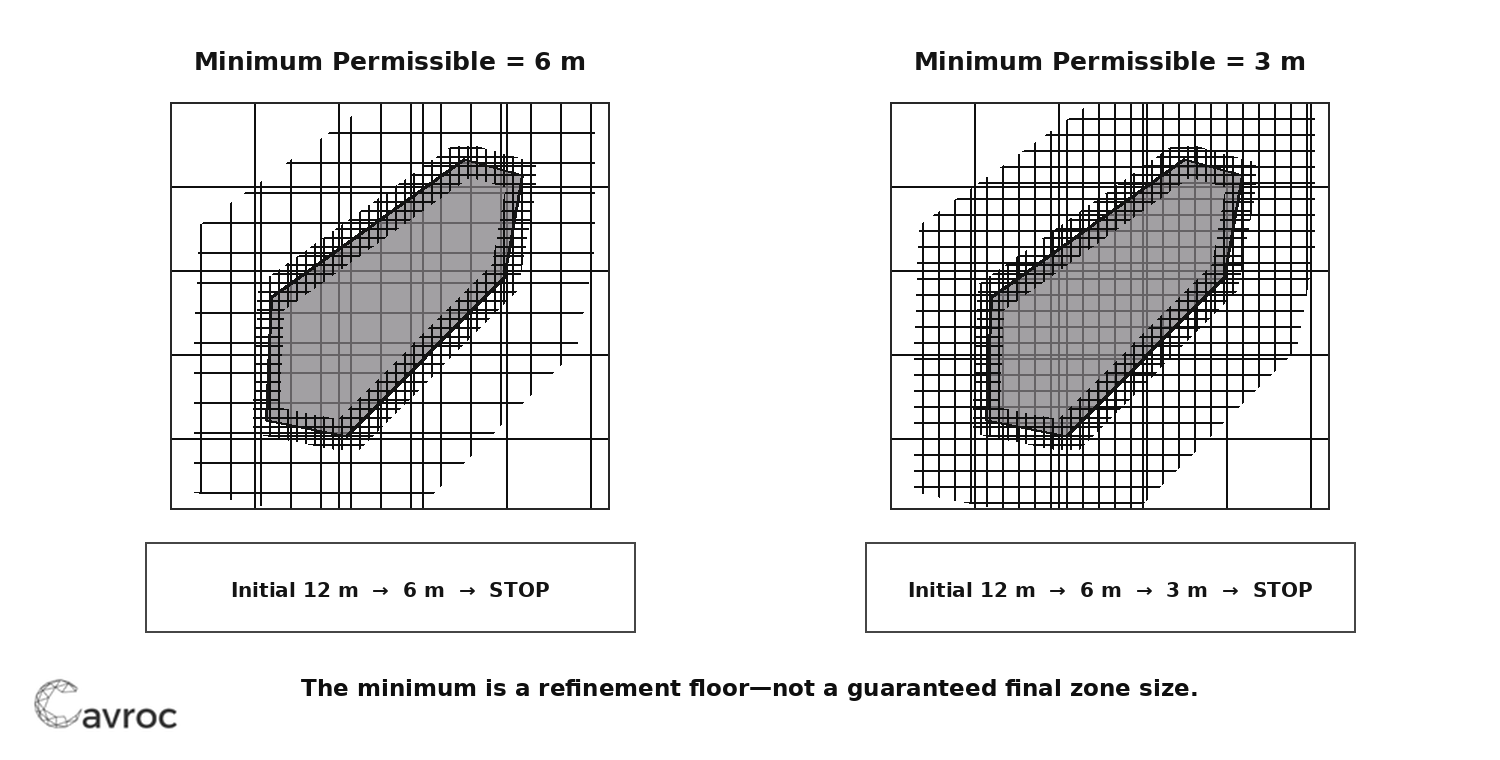
Figure 7 – Minimum Permissible Zone Size comparison
The minimum value is a limit, not a guaranteed final zone size. If the model already meets or exceeds the target number of zones, StopeX may not refine the component to its minimum.
If Initial Zone Size and Minimum Permissible Zone Size are equal, that component cannot be automatically refined below the initial value.
Zone Densification Distance
Zone Densification Distance controls how far the component’s mesh resolution extends away from the imported geometry boundary.
It controls the extent of the refined halo, not the edge length within that halo. The zone edge length is governed by Initial Zone Size and may be refined down to the Minimum Permissible Zone Size.
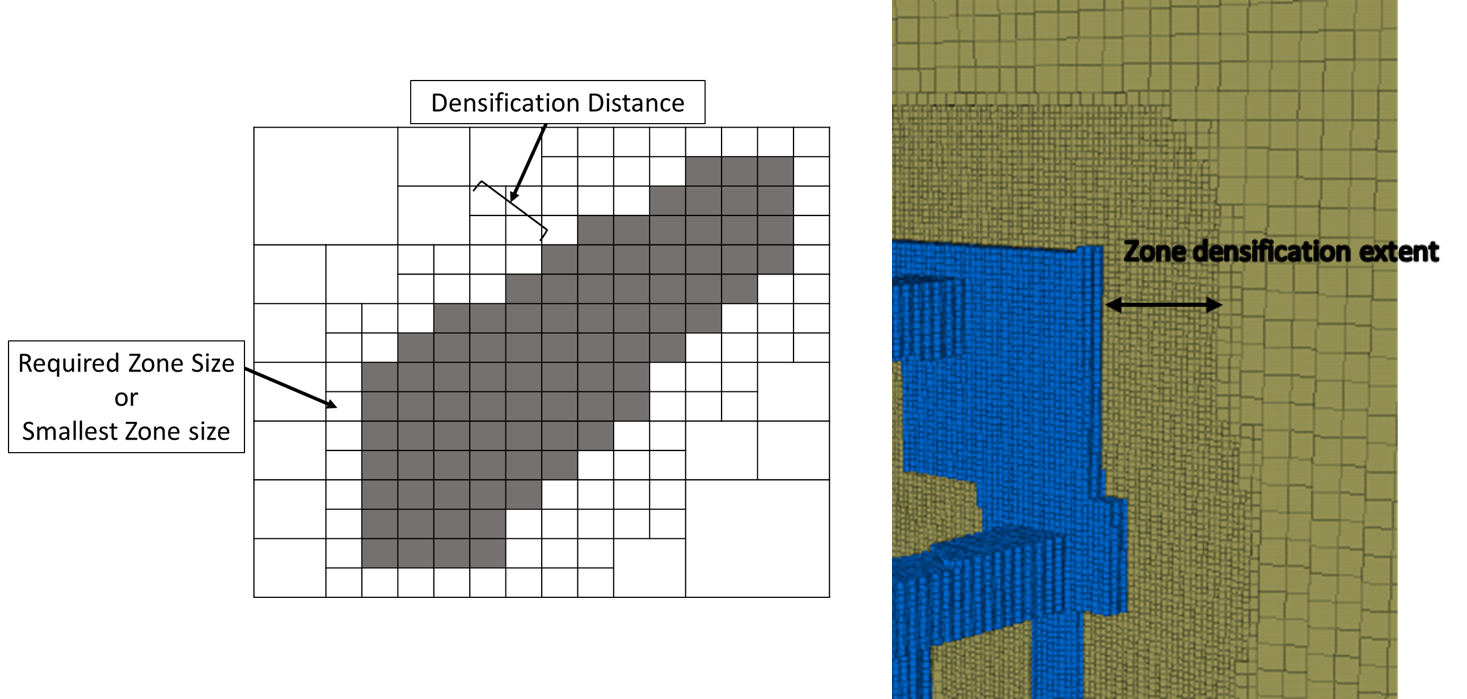
Figure 8 – Zone Densification Distance
A larger densification distance may be useful where damage, stress redistribution or interaction with nearby excavations is expected to extend farther into the rock mass. However, increasing the distance can add a large number of zones, particularly around extensive development or historical mining.
How the Automatic Iterations Work
For solid model components, the simplified process is:
- StopeX applies the Relative Geometry Accuracy target on the geometry boundary.
- It applies Initial Zone Size inside the geometry and throughout the assigned densification distance.
- It calculates the total number of zones in the model.
- If considerably more resolution is available before reaching the target, it may halve eligible Initial Zone Size values.
- It will not refine a component below its Minimum Permissible Zone Size.
- If the mesh is excessively fine, eligible Initial Zone Size values may be increased.
The boundary accuracy and the interior/halo size remain separate controls during this process.
Because the mesh is octree-based, the final mesh also contains transition zones between fine and coarse regions. Where different component controls overlap, the finer applicable requirement may control. Consequently, the final zones should be checked rather than assuming every zone will exactly match one input value.
Worked Example
Consider the following settings:
Global settings
- Far-Field Zone Size = 48 m
- Zone Size Multiplier During Initial Iteration, M = 3 m
Stope settings
- Relative Geometry Accuracy = Maximum
- Initial Zone Size = 6 m
- Minimum Permissible Zone Size = 3 m
- Zone Densification Distance = 15 m
The resulting logic is:
- the stope boundary has a 3 m edge-length target because Maximum Accuracy = M;
- the stope interior and the 15 m surrounding halo start with a 6 m edge-length target; and
- if additional refinement is needed to approach the target zone count, the interior and halo may refine from 6 m to 3 m, but not below 3 m.
Practical Selection Guidance
When selecting the inputs, start with the purpose of the model:
- Long-term or whole-of-mine models: use finer resolution only around the components important to the assessment. Historical mining and distant geometry can often be coarser.
- Development-focused models: ensure sufficient resolution around drives, intersections, pillars and areas where closure or local damage will be interpreted.
- Area-of-interest models: use the AOI to preserve high resolution locally while allowing the remainder of the mine-scale model to remain coarser.
- Sensitivity or trial runs: begin with a manageable target zone count, confirm geometry assignment and model behaviour, then refine the production model where justified.
For stopes that will later be excavated, very fine zones throughout the full stope interior are not automatically beneficial—the zones are removed when the excavation is created. Resolution at the excavation boundary and in the surrounding rock mass is generally more important, although the appropriate settings still depend on the model purpose and sequence.
Checks After Meshing
Before beginning a long model run, inspect the generated mesh and confirm that:
- small excavations and pillars are represented adequately;
- the densified region extends far enough around the areas of interest;
- historical mining, faults or widespread development have not generated an excessive number of zones;
- transition zones change size gradually away from refined regions;
- the total zone count is reasonable for the available computer resources; and
- the model boundaries are sufficiently far from the area being interpreted.
If the mesh is too large, do not simply coarsen everything. First identify which component is producing the excess zones, then consider adjusting its Initial Zone Size, Minimum Permissible Zone Size, Densification Distance or Geometry Accuracy as appropriate.
If you are unsure which settings are appropriate for your model, please post the model purpose, approximate excavation dimensions and proposed meshing parameters on the forum, or contact Cavroc support.